

This UI flow requires the unreleased Teams source option in Agent Canvas and the Automation callback-preview update. See the example’s requirements before starting.
Send notifications to Teams
A Teams Workflow gives your channel a webhook URL: an address that accepts notifications. Your automation sends a message to that address, and the Workflow posts it in the channel.- In the Teams channel, open More options → Workflows and choose Send webhook alerts to a channel.
- Select the team, channel and posting connection, then save the Workflow.
- In OpenHands, save the Workflow URL in Settings → Secrets under the name your automation reads, for example
TEAMS_INBOUND_DEMO_WEBHOOK_URL.
TEAMS_INBOUND_DEMO_WEBHOOK_URL and send its result to that address. For your own automation, tell it which named secret to use for Teams notifications. Saving the URL as a secret does not automatically configure an automation to send messages.
The Workflow uses Anyone authentication, so anyone who has the full URL can post to it. Keep it secret.
Start automations from Teams
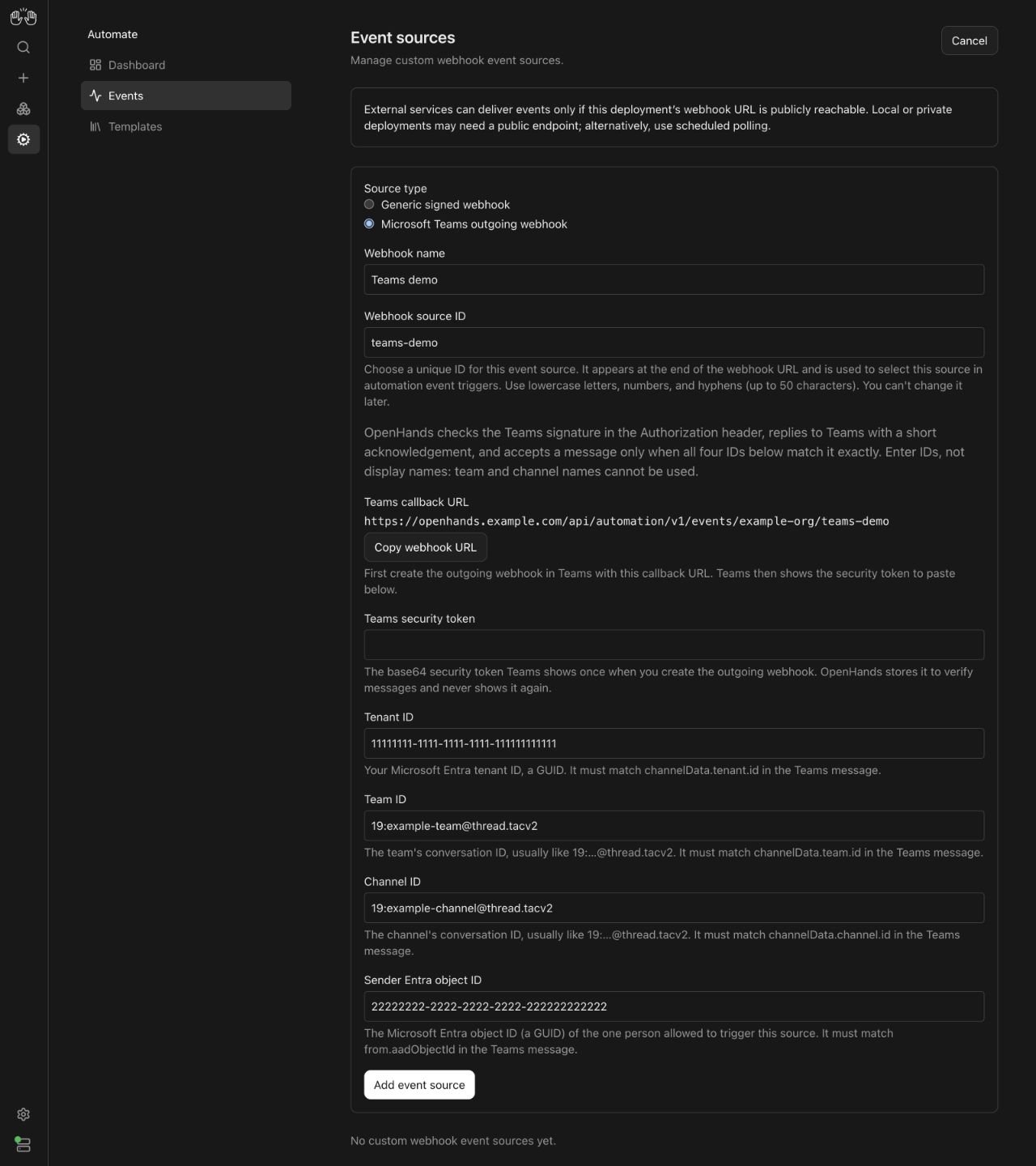
Have your tenant, team, channel and allowed sender IDs ready; display names do not work. The extensions example explains which IDs to use. Screenshots use illustrative values; the security token is omitted.- Open Automate → Events → Add event source and set Source type to Microsoft Teams outgoing webhook.
-
Enter a name and a Webhook source ID, such as
teams-demo. Copy the Teams callback URL that appears. - In Teams, open Manage team → Apps → Create an outgoing webhook. Name it OpenHands Demo, paste the callback URL and create it. Teams shows a security token once.
-
In OpenHands, enter the Teams security token, Tenant ID, Team ID, Channel ID and Sender Entra object ID, then select Add event source.
-
On the Automate Dashboard, open Custom automation and select Continue. Choose Upload tarball and Event, select your source, and enter
messageas the Event type. Upload the packaged example, usepython3 main.pyas the entrypoint, then select Continue → Confirm and create.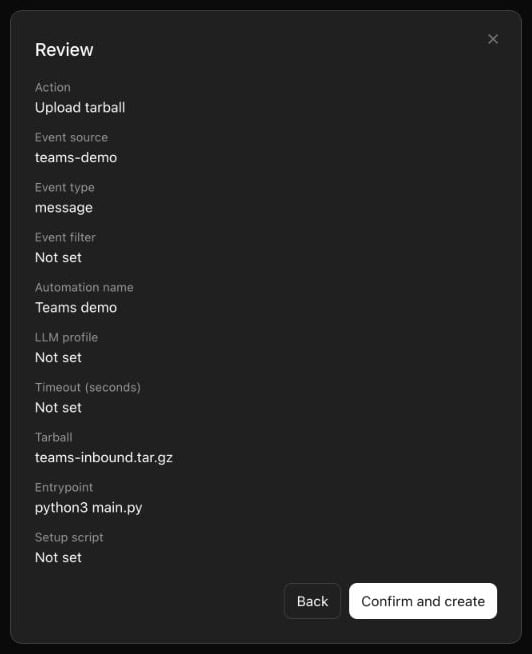
- In the channel, pick the webhook from Teams’ mention suggestions and send: