

Automations run on the active backend. Switch backends from Connect and Manage Backends to see automations on a different backend.
Browse and inspect automations
Open the Automate tab in the sidebar to see all automations on the active backend. Each row shows the automation name, trigger type, and enabled state. When the active backend is healthy but has no automations, the Automate pane remains available and includes an option to add one. Click an automation to open its detail view. The detail view shows:- The full prompt the automation runs
- The automation’s script, for automations that run a script bundle instead of a prompt
- Trigger configuration (schedule, webhook, or event)
- LLM profile used for runs
- Recent run history and status
Run Statuses
A run can bePENDING, RUNNING, COMPLETED, FAILED, CANCELLED, or SKIPPED. A SKIPPED run can occur when the backend reaches its concurrency limit. Future backend statuses appear as a neutral status badge so they do not prevent you from viewing the automation.
A completed run’s badge also reflects its task outcome. When the finish response has no task outcome status, the run shows a successful badge. Only an explicit unrecognized status string maps to Needs review. When the finish response carries an outcome_summary without a status, the run still shows that summary. These display rules are the same in the Activity Log, the run logs, the home health metrics, and automation insights.
Run Phase
Automation runs surface a live phase that reflects a run’s current state:PENDING, RUNNING, or FAILED. The phase appears on automation cards, in the Activity Log, and on the home screen, and updates live as a run progresses. A failed run retains its last phase after it stops.
Shared Automation Conversations on Cloud
On OpenHands Cloud, a run’s conversation can be viewed read-only by other members of your organization. Open the run’s link — from the Activity Log or a/conversations/<id> URL — and, if you are not the owner, Agent Canvas renders the conversation in read-only mode instead of reporting that it does not exist. Read-only viewers can follow the conversation history but cannot send messages or change the automation.
Script Automation Run Logs
An automation that runs a script bundle executes its entrypoint directly instead of starting a conversation. For these runs, the run record has no conversation. Use View logs on the run to read the script’s output; Agent Canvas resolves the logs from the run’s sandbox on cloud backends. A run that executed a script showsNo conversation — this run executed a script. Use View logs for its output. instead of No Conversation.
On cloud backends, a run’s sandbox is deleted shortly after the run finishes unless the backend keeps it for a cleanup delay. Once the sandbox is gone, the logs are no longer available and the run shows a deleted-sandbox message. Open View logs while the run is in progress to read its output.
Activity Log Costs and Exports
The Activity Log displays a completed run’s reported LLM cost in USD to four decimal places. A measured zero cost appears as$0.0000; when the backend does not report a cost, no cost appears in the log.
Use the Activity Log export controls to download run data as CSV or JSON. Both formats include a raw numeric cost field for every run, as well as the run’s phase. An unavailable cost is exported as null.
Create an automation with the setup assistant
Creating an automation opens a split view: a setup form on one side and a conversation with OpenHands on the other. You can describe the automation in the conversation and let OpenHands fill the form for you, or fill the fields yourself.- As OpenHands fills a field, it is marked ✦ Filled by OpenHands. Editing a field yourself clears the marker so you can see what you changed.
- The form covers the same settings as any automation: name, prompt, trigger, schedule, model, repository, and plugins.
- Reopen a draft from Automate → Edit to continue where you left off. The setup conversation is restored and pre-populates the form.
- The conversation that backs a draft is created only when you need it, so drafting does not start a run on its own.
- Test a draft before creating it, and review its test runs, from the draft’s row in Automate without opening a new conversation.
- Create the final automation when the form looks right; it then appears in the automation list like any other.
Enable and disable automations
Toggle an automation on or off from the kebab menu (⋮) on the automation row, or from the detail view. Disabled automations do not fire on their scheduled trigger or in response to events, but their configuration is preserved.Disablement reasons
When an automation is disabled, the detail page shows a banner with a human-readable disablement reason, structured detail, and a timestamp. This helps you understand why an automation stopped running. Common reasons include:- Manually disabled — A user turned the automation off from the kebab menu or detail view.
- Permanent dispatch failure — The automation backend reported a permanent failure that prevented the automation from running.
Edit an automation
You can edit an automation’s name, prompt, model, timeout, and schedule directly in Agent Canvas. On cloud backends, editing requires manage permissions or being the automation’s creator.Run an automation manually
Select Run now from the automation’s kebab menu to trigger an immediate run outside the normal schedule. Useful for testing or for one-off executions.Export an automation
Agent Canvas can export any automation as a portable JSON file. Use this to:- Share a reusable automation with teammates
- Back up automation configuration in version control
- Move an automation between backends or accounts
- Open the Automate view.
- Click the kebab menu (⋮) on the automation you want to export.
- Select Export.
<slug>.automation.json, where <slug> is derived from the automation’s name.
Exported file format
The file contains a versioned JSON document with the automation’s full configuration:spec object includes the automation’s name, prompt, trigger, schedule, repository, model, plugins, and notification settings. You can hand-author, diff, or version-control this file using any standard tool.
Import an automation
You can import an automation from a JSON file previously exported by Agent Canvas, or from a hand-authored file that follows the same versioned schema. To import:- Open the Automate view.
- Click Import automation at the top of the list.
- Pick the
.jsonfile to import. - Review the preview — it shows the automation’s name, trigger type, and prompt.
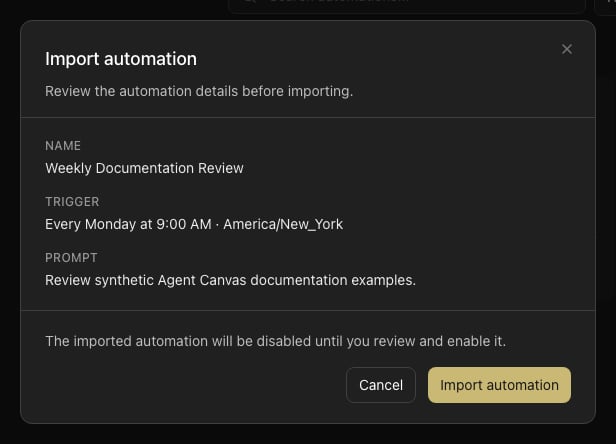
- Confirm to create the automation.