

Prerequisites
Before configuring Zed, ensure you have:- OpenHands CLI installed - See Installation
- LLM settings configured - Run
openhandsand use/settings - Zed editor - Download from zed.dev
Configuration
Step 1: Open Agent Settings
- Open Zed
- Press
Cmd+Shift+P(Mac) orCtrl+Shift+P(Windows/Linux) to open the command palette - Search for
agent: open settings

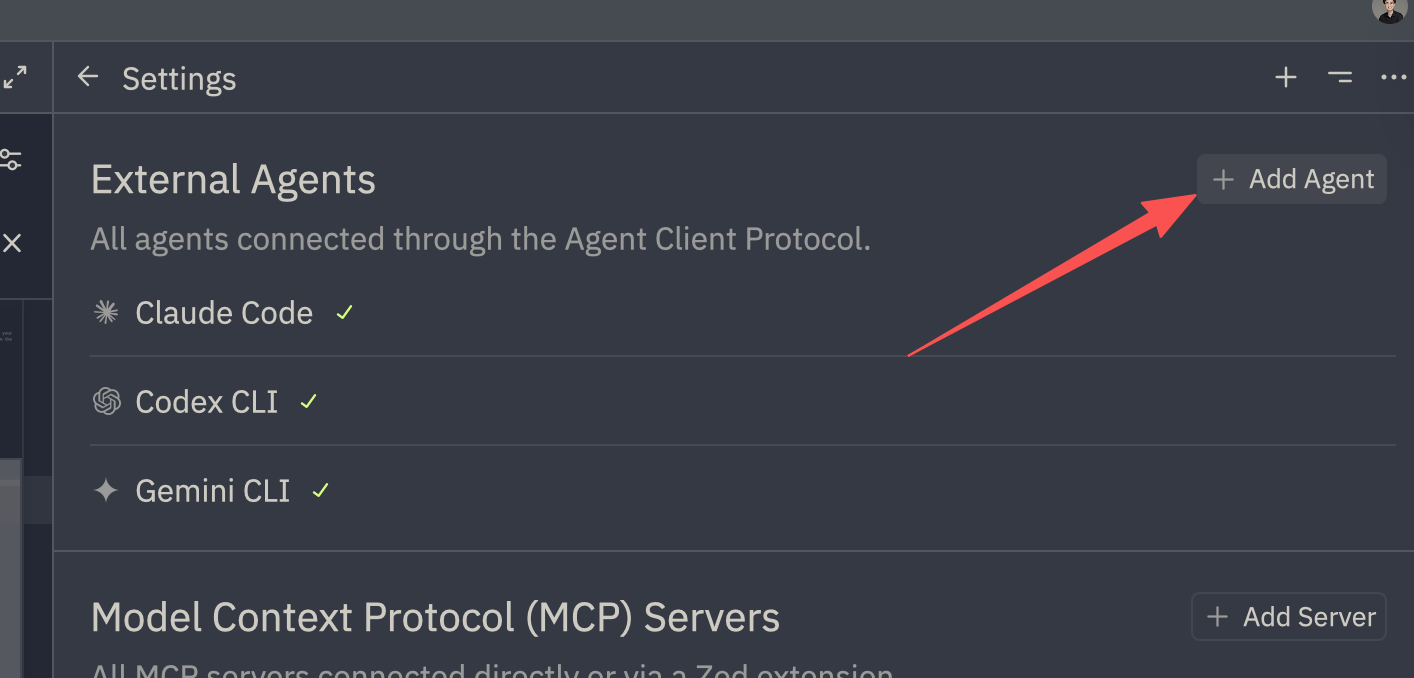
Step 2: Add OpenHands as an Agent
- On the right side, click
+ Add Agent - Select
Add Custom Agent
Step 3: Configure the Agent
Add the following configuration to theagent_servers field:
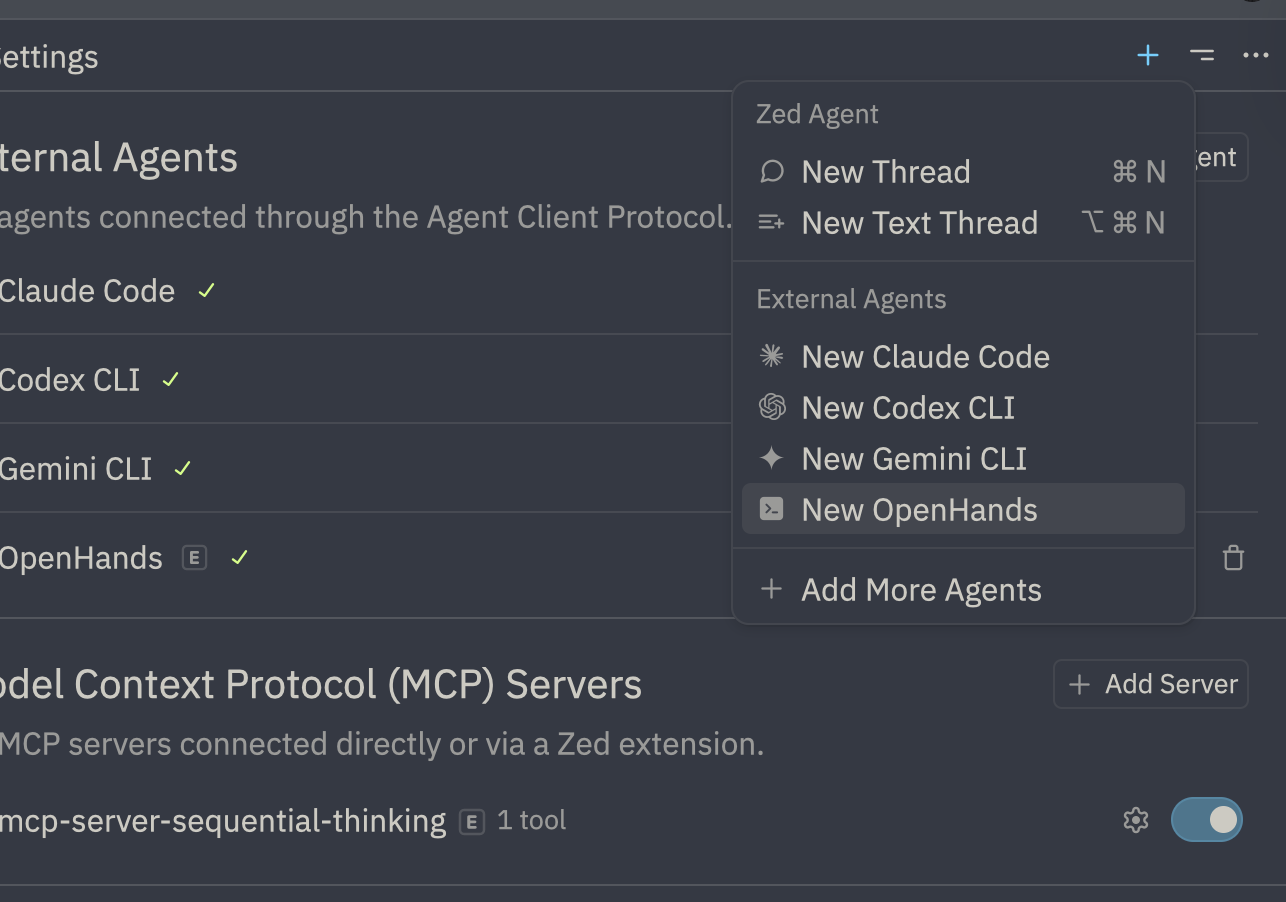
Step 4: Save and Use
- Save the settings file
- You can now use OpenHands within Zed!
Advanced Configuration
LLM-Approve Mode
For automatic LLM-based approval of actions:Resume a Specific Conversation
To resume a previous conversation:abc123def456 with your actual conversation ID. Find conversation IDs by running openhands --resume in your terminal.
Resume Latest Conversation
Multiple Configurations
You can add multiple OpenHands configurations for different use cases:Troubleshooting
Accessing Debug Logs
If you encounter issues:- Open the command palette (
Cmd+Shift+PorCtrl+Shift+P) - Type and select
acp debug log - Review the logs for errors or warnings
- Restart the conversation to reload connections after configuration changes
Common Issues
“openhands” command not found Ensure OpenHands is installed and in your PATH:uvx, ensure uv is installed:
- Check that your LLM settings are configured: run
openhandsand verify/settings - Verify the configuration JSON syntax is valid
- Check the ACP debug logs for detailed errors
~/.openhands/conversations. Ensure this directory is writable.
After making configuration changes, restart the conversation in Zed to apply them.
See Also
- IDE Integration Overview - ACP concepts and other IDEs
- Zed Documentation - Official Zed documentation
- Resume Conversations - Find conversation IDs