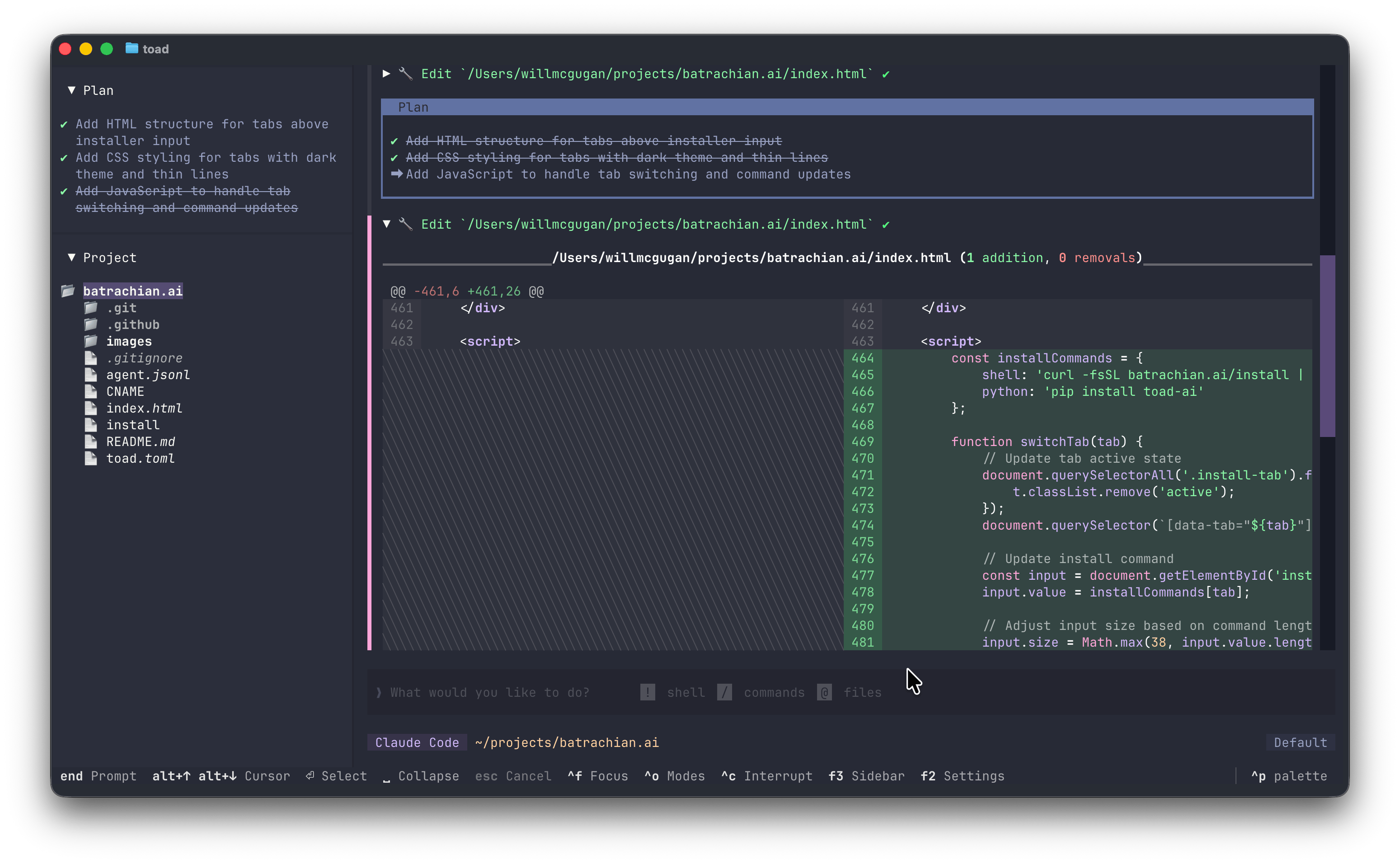
Toad is a universal terminal interface for AI agents, created by Will McGugan, the creator of the popular Python libraries Rich and Textual. The name comes from “textual code”—combining the Textual framework with coding assistance. Toad Terminal Interface

Why Toad?

Toad provides a modern terminal user experience that addresses several limitations common to existing terminal-based AI tools:
  • No flickering or visual artifacts - Toad can update partial regions of the screen without redrawing everything
  • Scrollback that works - You can scroll back through your conversation history and interact with previous outputs
  • A unified experience - Instead of learning different interfaces for different AI agents, Toad provides a consistent experience across all supported agents through ACP
OpenHands is included as a recommended agent in Toad’s agent store.


Prerequisites

Before using Toad with OpenHands:
  1. OpenHands CLI installed - See Installation
  2. LLM settings configured - Run openhands and use /settings

Installation

Install Toad using uv:
uvx batrachian-toad
For more installation options and documentation, visit batrachian.ai.

Setup

Using the Agent Store

The easiest way to set up OpenHands with Toad:
  1. Launch Toad: uvx batrachian-toad
  2. Open Toad’s agent store
  3. Find OpenHands in the list of recommended agents
  4. Click Install to set up OpenHands
  5. Select OpenHands and start a conversation
The install process runs:
uv tool install openhands --python 3.12 && openhands login

Manual Configuration

You can also launch Toad directly with OpenHands:
toad acp "openhands acp"

Usage

Basic Usage

# Launch Toad with OpenHands
toad acp "openhands acp"

With Command Line Arguments

Pass OpenHands CLI flags through Toad:
# Use LLM-based approval mode
toad acp "openhands acp --llm-approve"

# Auto-approve all actions
toad acp "openhands acp --always-approve"

Resume a Conversation

Resume a specific conversation by ID:
toad acp "openhands acp --resume abc123def456"
Resume the most recent conversation:
toad acp "openhands acp --resume --last"
Find your conversation IDs by running openhands --resume in a regular terminal.

Advanced Configuration

Combined Options

# Resume with LLM approval
toad acp "openhands acp --resume --last --llm-approve"

Environment Variables

Pass environment variables to OpenHands:
LLM_API_KEY=your-key toad acp "openhands acp"

Troubleshooting

”openhands” command not found

Ensure OpenHands is installed:
uv tool install openhands --python 3.12
Verify it’s in your PATH:
which openhands

Agent doesn’t respond

  1. Check your LLM settings: openhands then /settings
  2. Verify your API key is valid
  3. Check network connectivity to your LLM provider

Conversation not persisting

Conversations are stored in ~/.openhands/conversations. Ensure this directory exists and is writable.

See Also