

Prerequisites
- Register for an Enterprise trial, or use an existing licensed installer account.
- Azure CLI and an Azure subscription with permission to create a resource group, VM, managed disk, virtual network, subnet, NIC, network security group, and public IP.
- Regional total-vCPU and VM-family quota for a VM with at least 16 vCPUs and 64 GB RAM.
- An SSH key pair and the public IPv4 CIDR of the administrator’s workstation or VPN.
- A base domain you control and permission to change its DNS records.
- A publicly trusted wildcard certificate and its private key.
- An Anthropic API key and a GitHub account with permission to create/install a GitHub App.
Contributor normally covers the infrastructure in this guide.
Plan the Azure Resources
The example uses
Standard_D16s_v3 (16 vCPUs, 64 GB RAM) and a 1,024 GiB
Premium SSD OS disk. The larger disk selects the P30 performance tier; it is not
a new capacity requirement. The trial baseline is 200 GB and P99 write latency
below 10 ms. A disk’s provisioned IOPS do not guarantee that latency: run the
installer’s host preflights. See Premium storage performance
and the Sizing Guide for larger deployments.
Use persistent managed storage for installation data. Azure temporary/resource
disks can be lost during host maintenance or redeployment. This example keeps
installation data on the managed OS disk rather than adding a temporary disk.
This single-disk layout was used for the validation below. For a deployment that
needs to grow, follow the Sizing Guide recommendation
to use a separate expandable data volume.
Provision Infrastructure
Run these commands from your administrator workstation using Bash.1. Select the Subscription and Check Capacity
Microsoft.Compute, Microsoft.Network, and Microsoft.Storage are
registered under Subscriptions → Resource providers. Registration may need
a subscription administrator. This deployment does not require AKS or the
Microsoft.ContainerService provider.
Use an existing SSH public key, or generate a dedicated key pair without
replacing an existing file:
2. Create Networking and Ingress Rules
Use a new, dedicated resource group. Check that its name is unused before proceeding; do not place evaluation resources in a shared production group.3. Create the VM and Persistent Disk
2379, 7443, 9099,
10248, 10257, and 10259 (TCP). These do not need public NSG rules.
On the VM, verify the OS, kernel, memory, disk space, and sudo access:
4. Configure DNS
Create a wildcard A record for*.<base-domain> pointing to the static VM_IP.
You can keep DNS with your existing provider; Azure hosting does not require
Azure DNS.
If your authoritative zone is already hosted in Azure DNS, run from your
workstation using the existing zone’s resource group:
5. Obtain and Copy TLS Files
Obtain a publicly trusted wildcard certificate for*.<base-domain>. For
Let’s Encrypt, use a DNS-01 challenge with your authoritative DNS provider.
HTTP-01 cannot issue a wildcard certificate. Keep provider credentials and
private keys out of repositories and command output.
If you do not already have a certificate, install Certbot using its
official instructions. For an evaluation,
run a manual DNS-01 challenge on your administrator workstation:
_acme-challenge.<base-domain>. Create it with the authoritative DNS provider,
wait for public resolution, and then continue the challenge. For Azure DNS,
the TXT record’s relative name for this example is
_acme-challenge.azure.openhands in the example.com zone.
$HOME/letsencrypt/live/openhands-azure/, owned by the user who ran Certbot.
Transfer those files through your
approved private channel, or substitute existing certificate files below. See
Certbot’s manual challenge guide.
Manual challenges need to be repeated for renewal unless you configure an
authentication hook; choose a DNS plugin for unattended certificate issuance.
Copy the full certificate chain and private key to a private directory on the
VM using your existing certificate files:
admin, app, auth,
analytics, llm-proxy, runtime-api, and dynamic <id>-runtime hostnames under
the base domain. If wildcard certificates are unavailable, follow the
VM DNS/TLS alternative and select
path-based sandbox routing.
Azure Disk Latency Preflight
The installer measures write latency at its etcd data directory. Nominal disk capacity, a Premium SSD label, and provisioned IOPS do not prove that this check will pass. In an evaluation of this example’s 1,024 GiB P30 disk, the first measurement was10.027008 ms P99 against the required <10 ms, and the installer
stopped before cluster deployment. A repeat with the disk unchanged measured
9.633792 ms and passed. Both measurements were close to the threshold;
validate your own host and plan performance headroom for production.
If your disk fails this check, review the measured result, VM storage limits,
and disk performance tier with your Azure administrator. Azure supports
increasing a Premium SSD performance tier
without increasing disk capacity. Higher tiers change disk billing and still
require a passing latency preflight. Do not bypass the check or use the temporary
resource disk for persistent installation data.
Preflight Validation
All items below must be completed before running the installer:- VM meets CPU, memory, disk, and OS requirements
- DNS records are created and resolve from the VM
- Inbound ports are open:
80,443, and30000 - Outbound domains are reachable from the VM
- HTTPS egress to
api.anthropic.comis available - GitHub App prerequisites are prepared
- (Optional) External PostgreSQL instance provisioned if using your own database
DNS Checks
Run the checks below on the target VM before opening the installer dashboard. Export your base domain:Outbound Connectivity Checks
000 is acceptable for reachability checks
(for example 200, 301, 302, 401, 403, 405).
If any check fails, stop and resolve before continuing:
- DNS failures: Verify records are created, point to the right target, and have finished propagating
- Outbound connectivity failures: Check firewall egress rules, proxy settings, and TLS inspection policies
Reasons for Requirements
Run the Installer
1. Access the Installer Dashboard
After preflight validation checks have passed, register for a free 30-day trial, then log in to the installer dashboard. You will see the dashboard below. Click “View install guide” in the Install tile.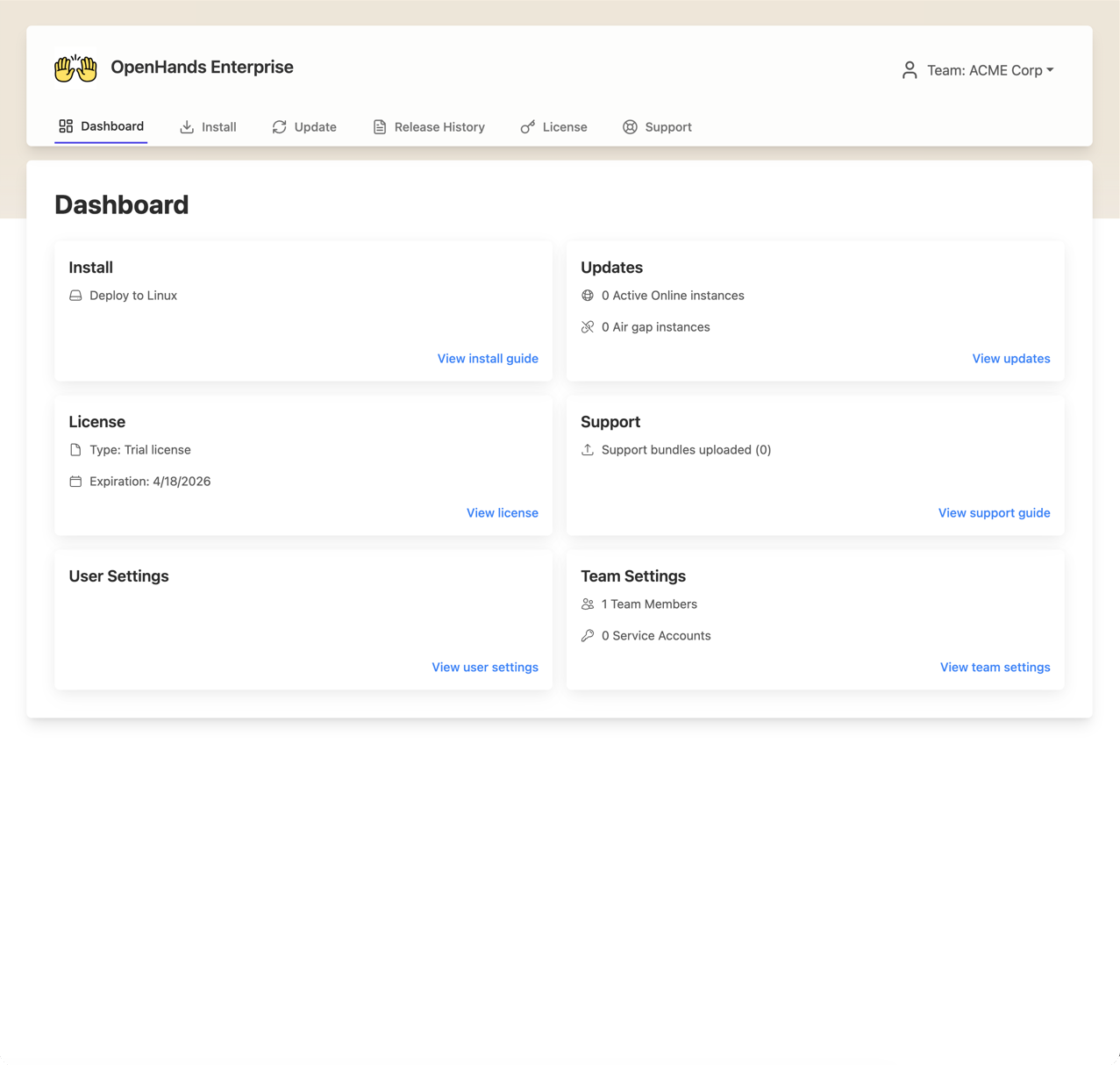
2. Name Your Instance
Enter a name for your instance (e.g., your company name or environment identifier). Select “Outbound requests allowed” for Network Availability, then click Continue.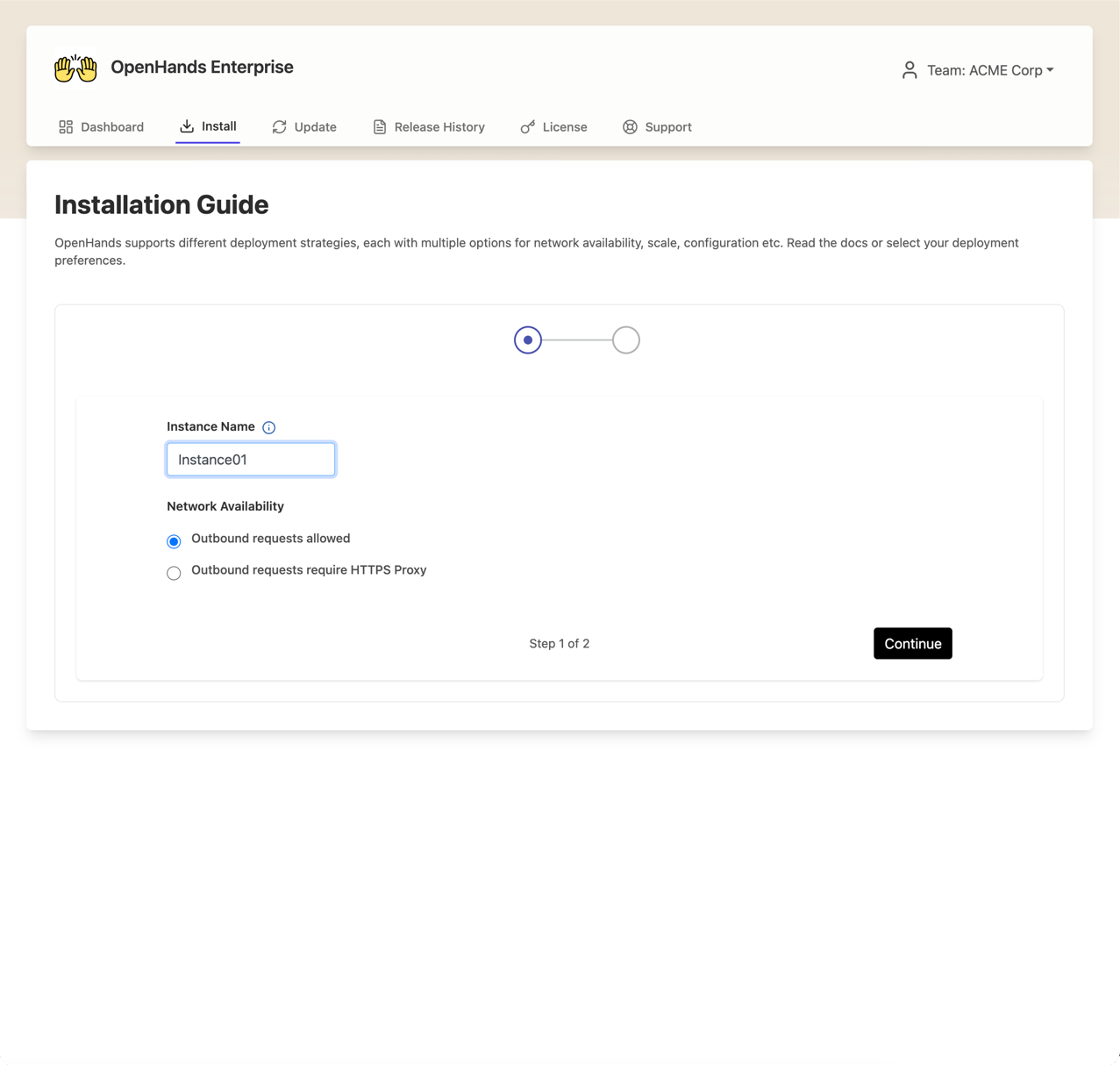
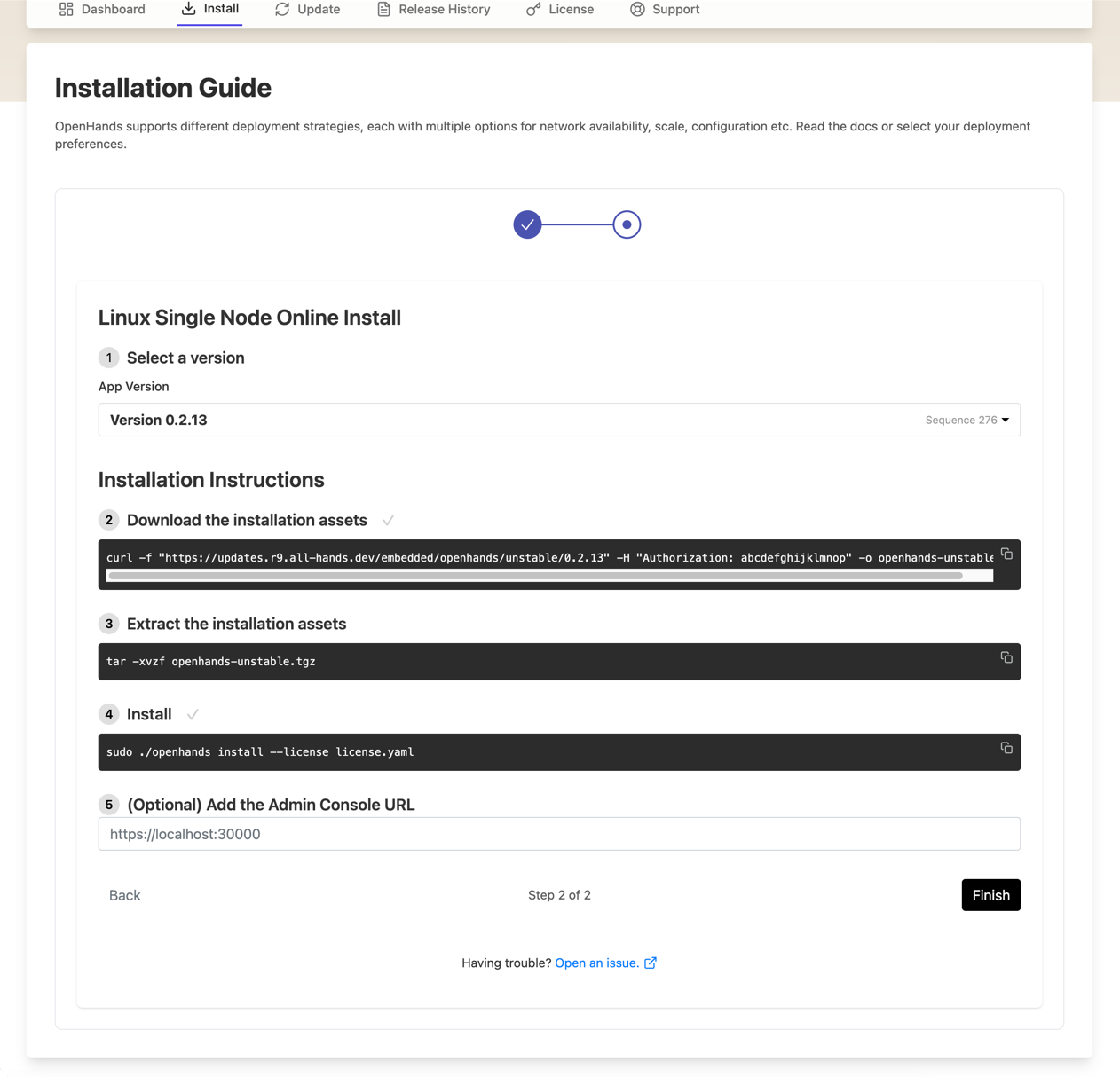
3. Run the Installation Commands
The install guide provides commands to run on your VM. SSH into your VM and execute them in order:- Select a version — select
0.74.0to reproduce the validated installation below. The dashboard pre-selects the latest release; later releases were not tested for this guide. If0.74.0is unavailable, ask OpenHands Support for a supported release and repeat the preflight and first-conversation checks. - Download the installation assets — copy and run the
curlcommand shown - Extract the installation assets — run the
tarcommand shown (this includes your license file) - Install — run the install command shown
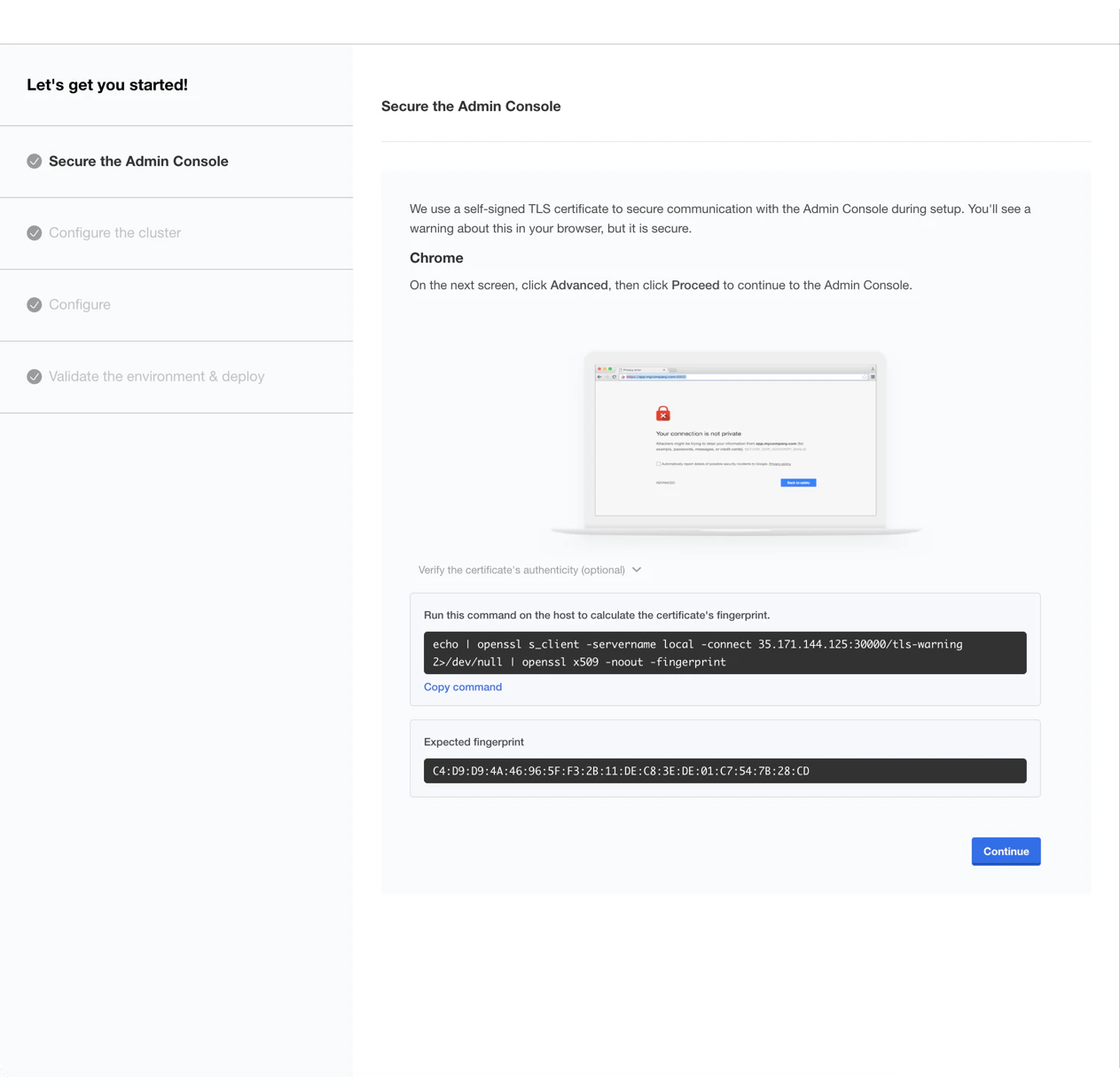
4. Access the Admin Console
Once the install command completes, the Admin Console is available at:https://admin.<your-base-domain>:30000(if you provided TLS certificates)- The URL printed by the installer (if you did not provide TLS files)
5. Upload TLS Certificate (If Not Provided With the Install Command)
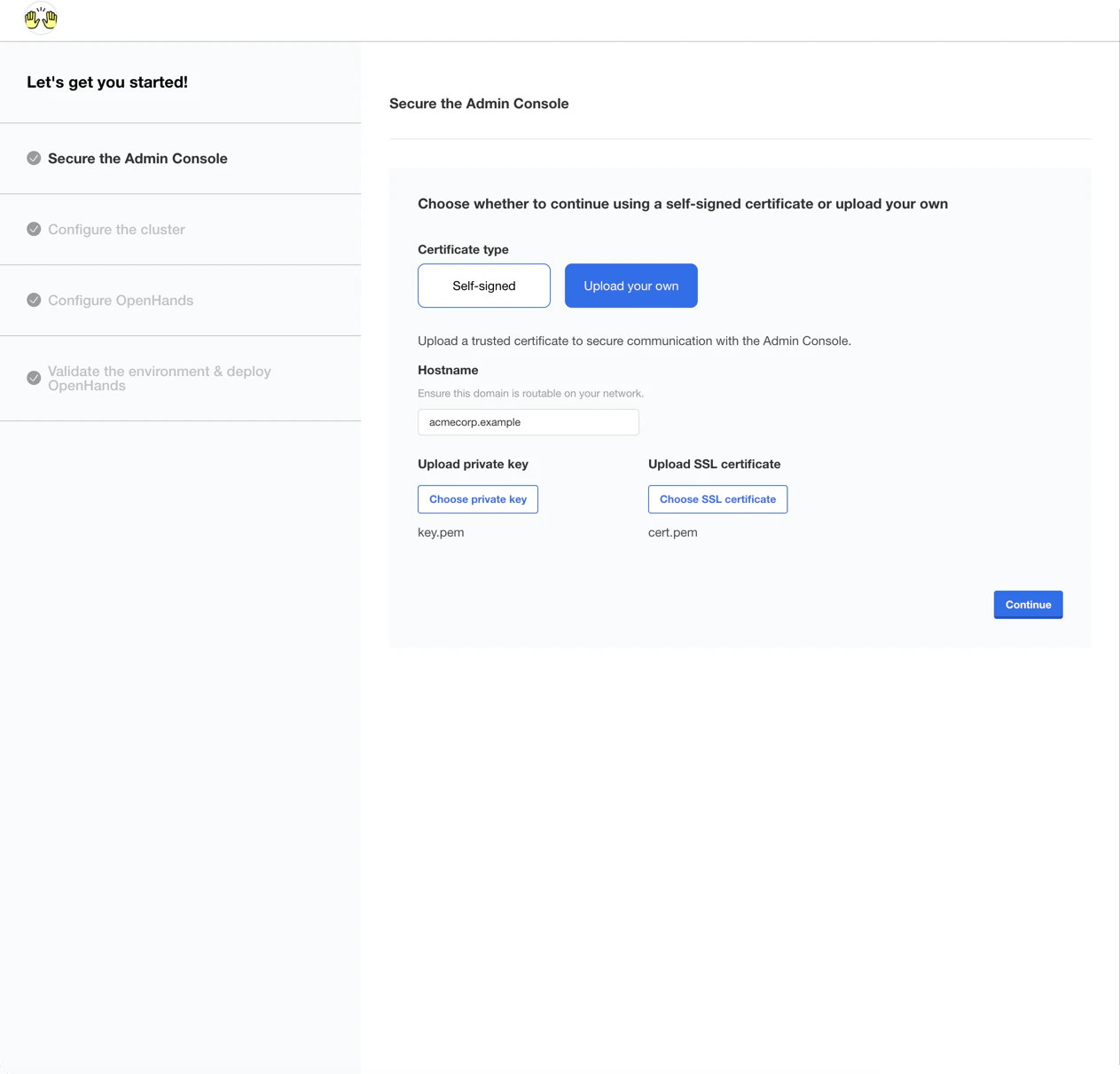
If you did not provide certificates with theinstall command, select “Upload your own”,
enter admin.<your-base-domain> under Hostname, upload your private key and SSL certificate, then click Continue.
If you upload a private CA certificate, make sure any external webhook or OAuth provider that
calls OpenHands also trusts that CA.
6. Log In to the Admin Console
Enter the password you set during installation and click Log in.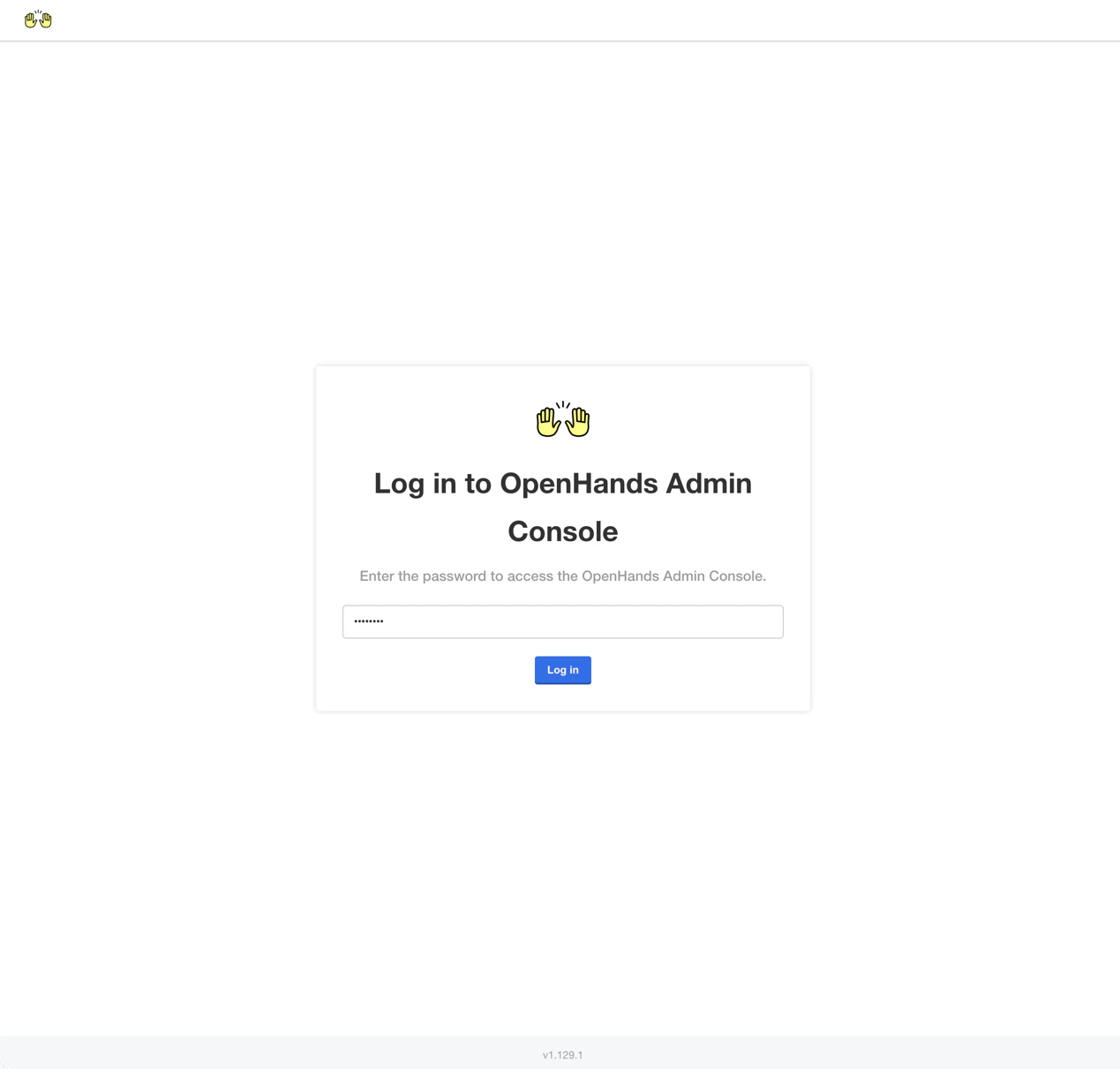
7. Configure the Cluster
You will be prompted to add additional nodes to the cluster. For a single-node deployment, click Continue to skip this step.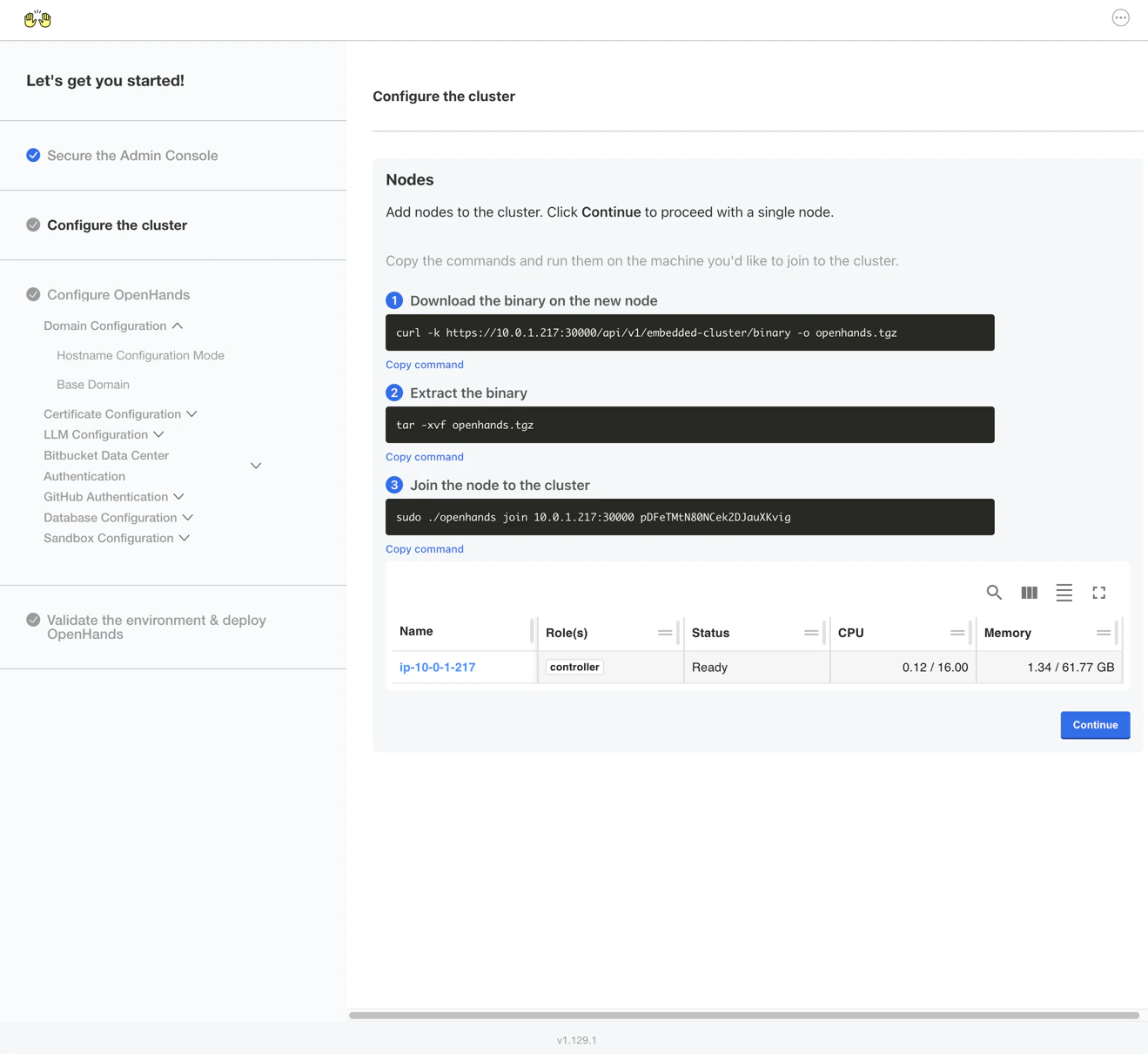
Configure OpenHands
You should now see the application configuration page.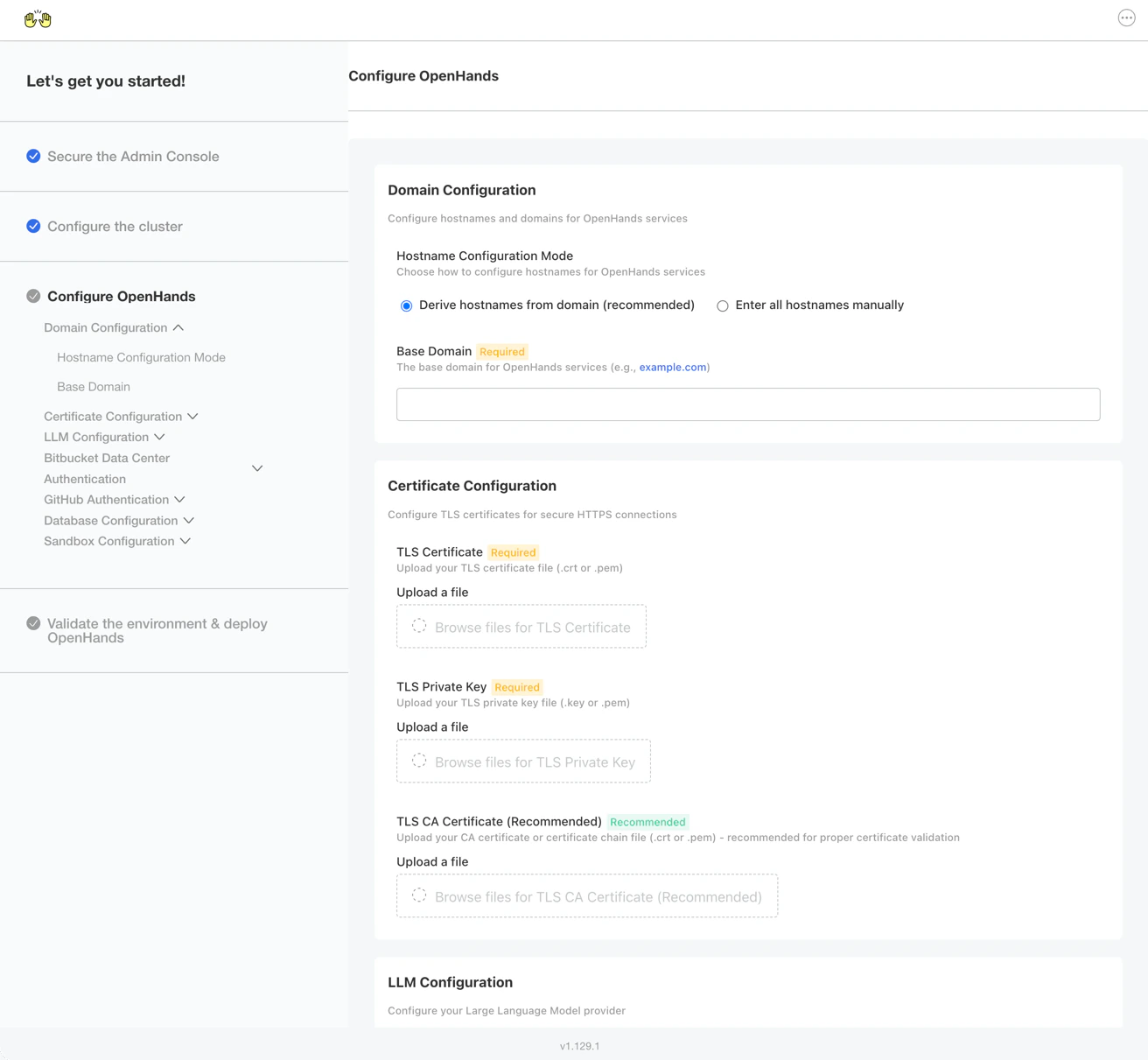
Domain Configuration
- Keep the Hostname Configuration Mode set to “Simple (default)”
- Enter your base domain (e.g.,
azure.openhands.example.com)
Certificate Configuration
- Upload your TLS Certificate (
.crtor.pem) - Upload your TLS Private Key (
.keyor.pem) - Optionally upload the root CA Certificate for your TLS certificates
LLM Configuration
Configure managed models in the Replicated Admin Console under
Config → LLM Configuration, then save and deploy the configuration. Select those models in
OpenHands. This Quick Start does not require signing into LiteLLM or calling its
API directly. If a configured model is missing, use
Troubleshooting and contact OpenHands Support;
do not register it directly in LiteLLM to bypass the problem.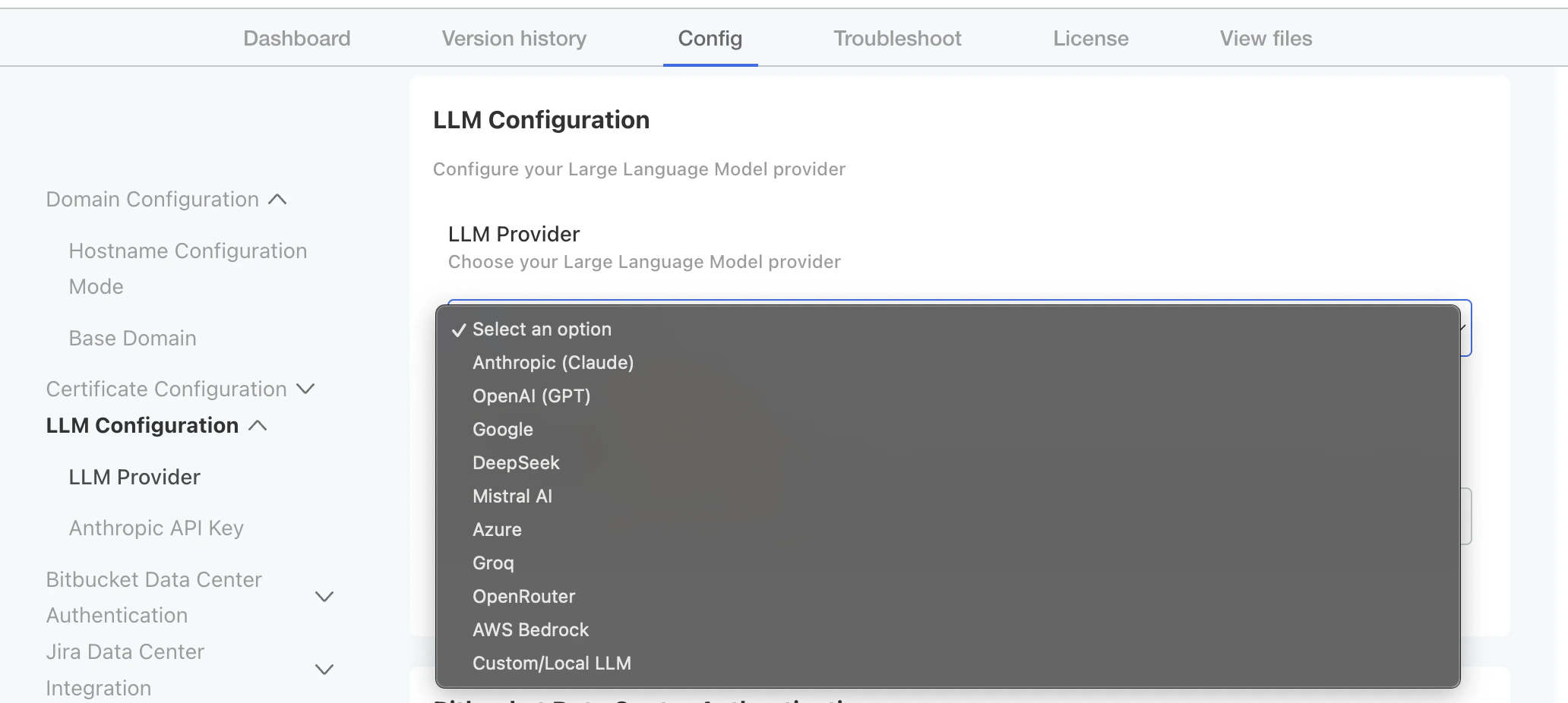
Anthropic (Claude) and enter your key in
Anthropic API Key. Keep or replace the default Anthropic Models entries with model IDs
that your account can access, one per line. Confirm the model selected in
OpenHands can complete a request before changing providers.
Permit HTTPS egress to api.anthropic.com in addition to the installer and
image endpoints listed above. Azure OpenAI resources and keys are not required
for this baseline.
Database Configuration
By default, OpenHands Enterprise uses a bundled PostgreSQL database. If you need to use your own PostgreSQL instance (for example, to integrate with existing database infrastructure or meet specific backup/HA requirements), see External PostgreSQL for setup instructions.GitHub Authentication
Enable GitHub Authentication in the Admin Console, then follow these steps to create and configure a GitHub App.Create a GitHub App
For a new base domain, create a dedicated GitHub App so existing installations keep their webhook routing. A retired installation’s app can be reused after updating its homepage, OAuth callback, and webhook to the new domain and verifying its repository scope and credentials. A GitHub App has one webhook URL, so sharing it across simultaneous installations requires a separate routing solution. For Simple mode, the callback ishttps://auth.<base-domain>/realms/allhands/broker/github/endpoint and the webhook
is https://app.<base-domain>/integration/github/events.
Run our script to create a GitHub App configured for your install.
Map GitHub App Values to Admin Console
Go back to the Installer Admin Console in your browser and enter the values from the Create GitHub App script output. For the private key, upload the file from thekeys directory of the script location.
See GitHub for GitHub App installation,
@openhands resolver behavior, pull request review identity, and repository-level
review controls.
Additional Integrations
If your team uses Jira Data Center or Bitbucket Data Center, follow these guides to configure Admin Console values before deployment and complete webhook setup inside OpenHands after deployment.Bitbucket Data Center
Configure Bitbucket Data Center login, repository access, bot identity, and pull request webhooks.
Jira Data Center
Configure Jira issue triggers, OAuth account linking, service account credentials, and Jira webhooks.
Deploy and Verify
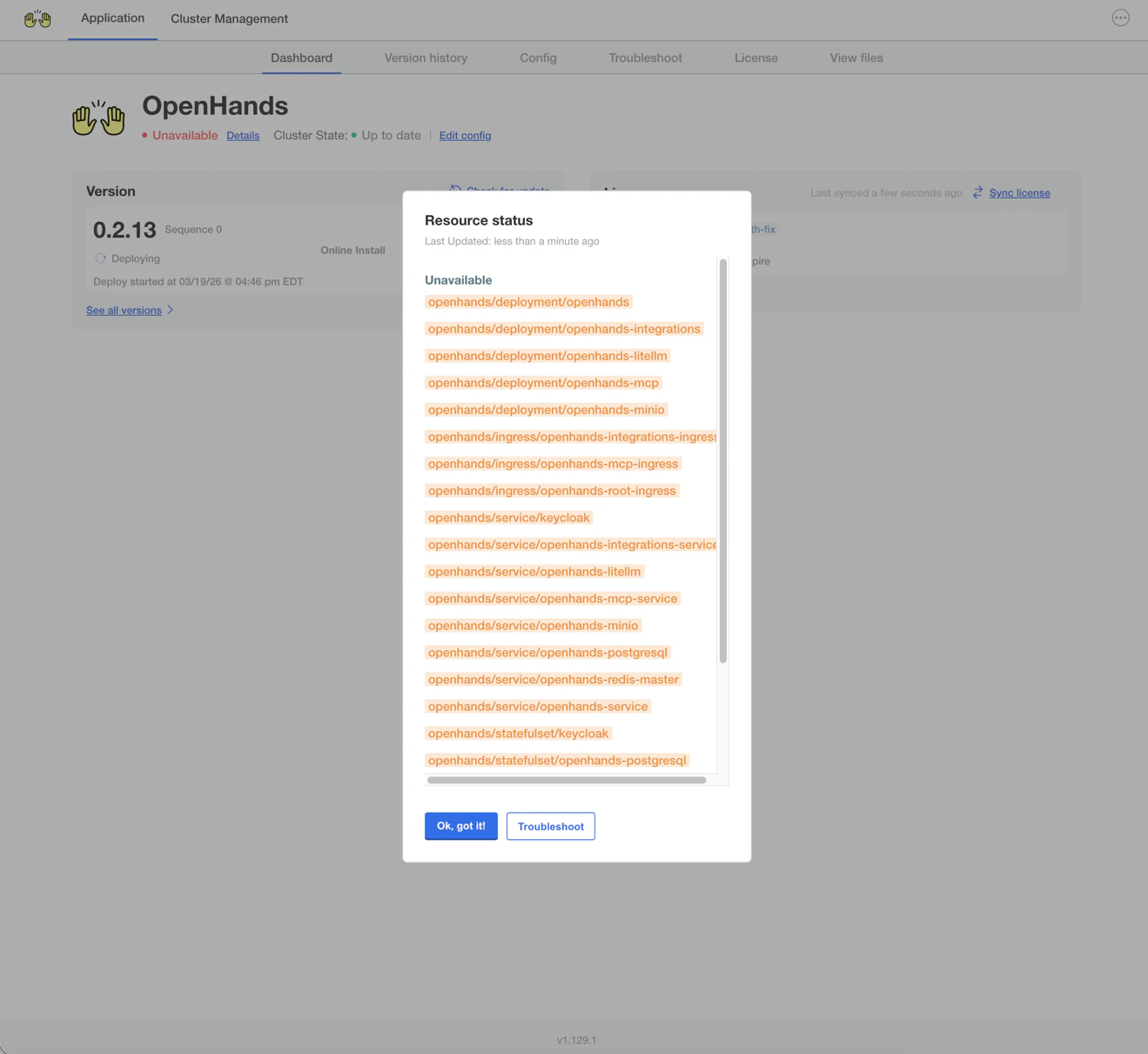
OpenHands will begin deploying. You can expect the deployment status to transition from Missing to Unavailable to Ready. This typically takes 5-10 minutes.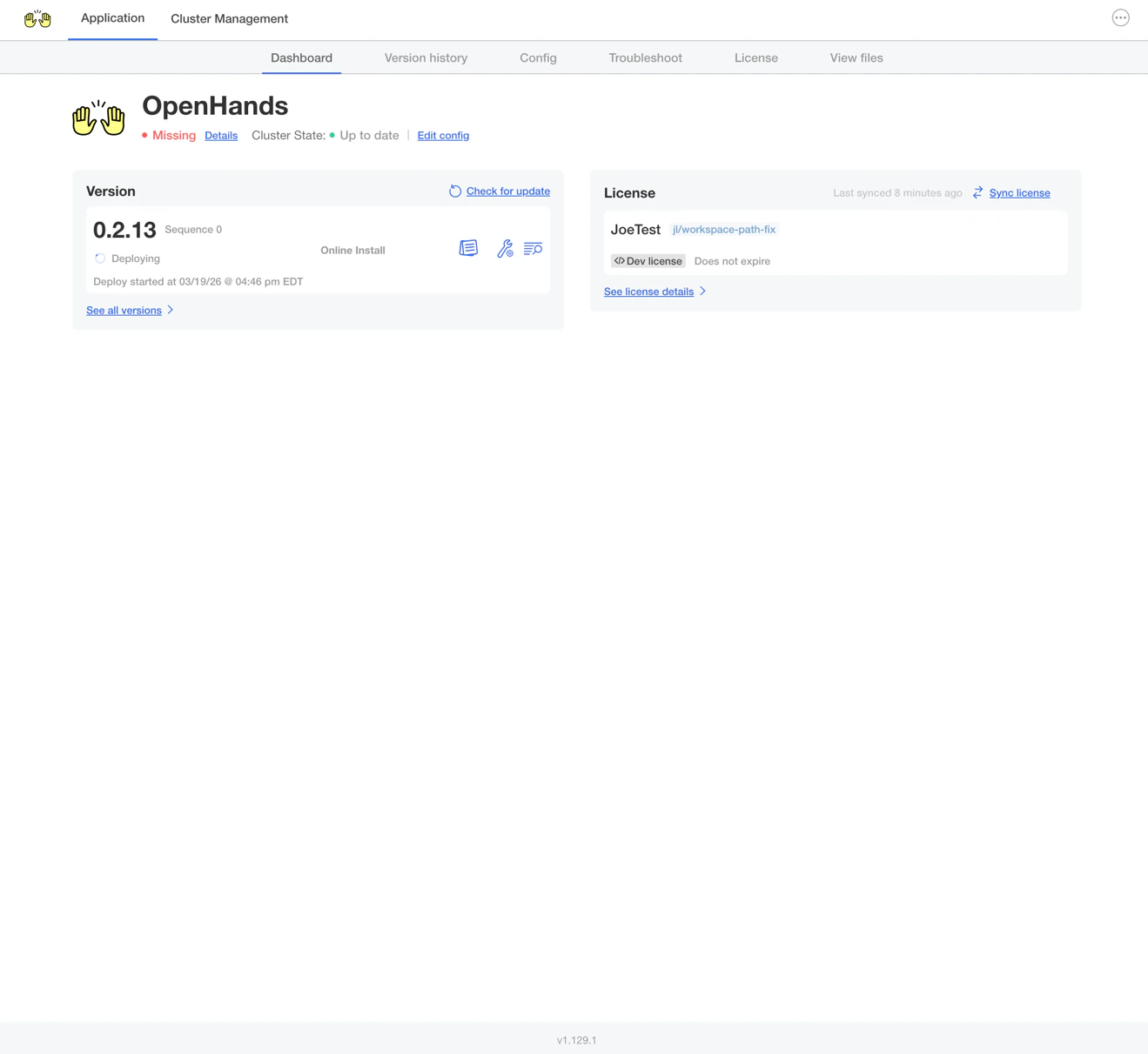
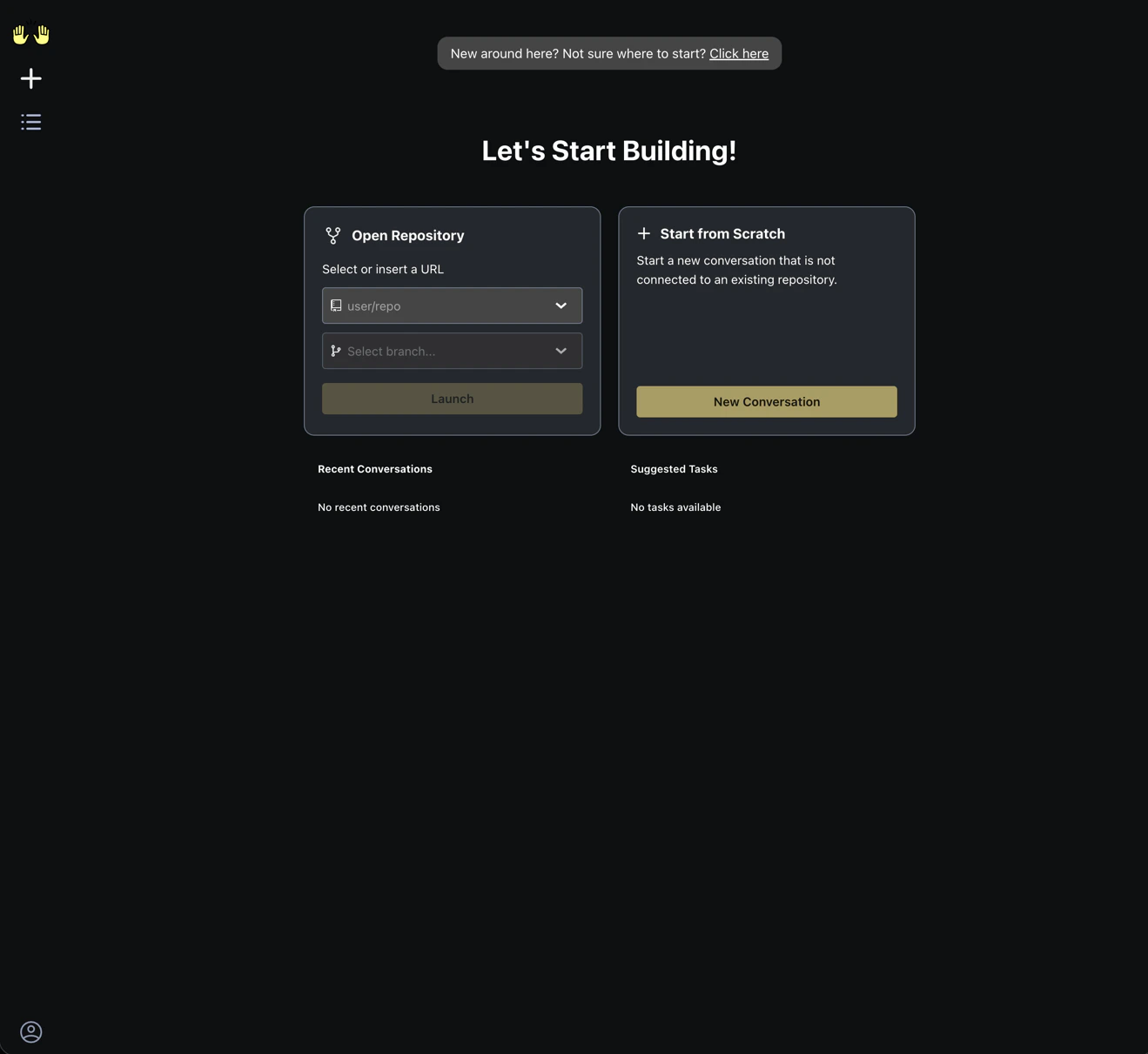
First Login
Once the deployment status shows Ready, navigate tohttps://app.<your-base-domain>
and click the Login with GitHub tile.
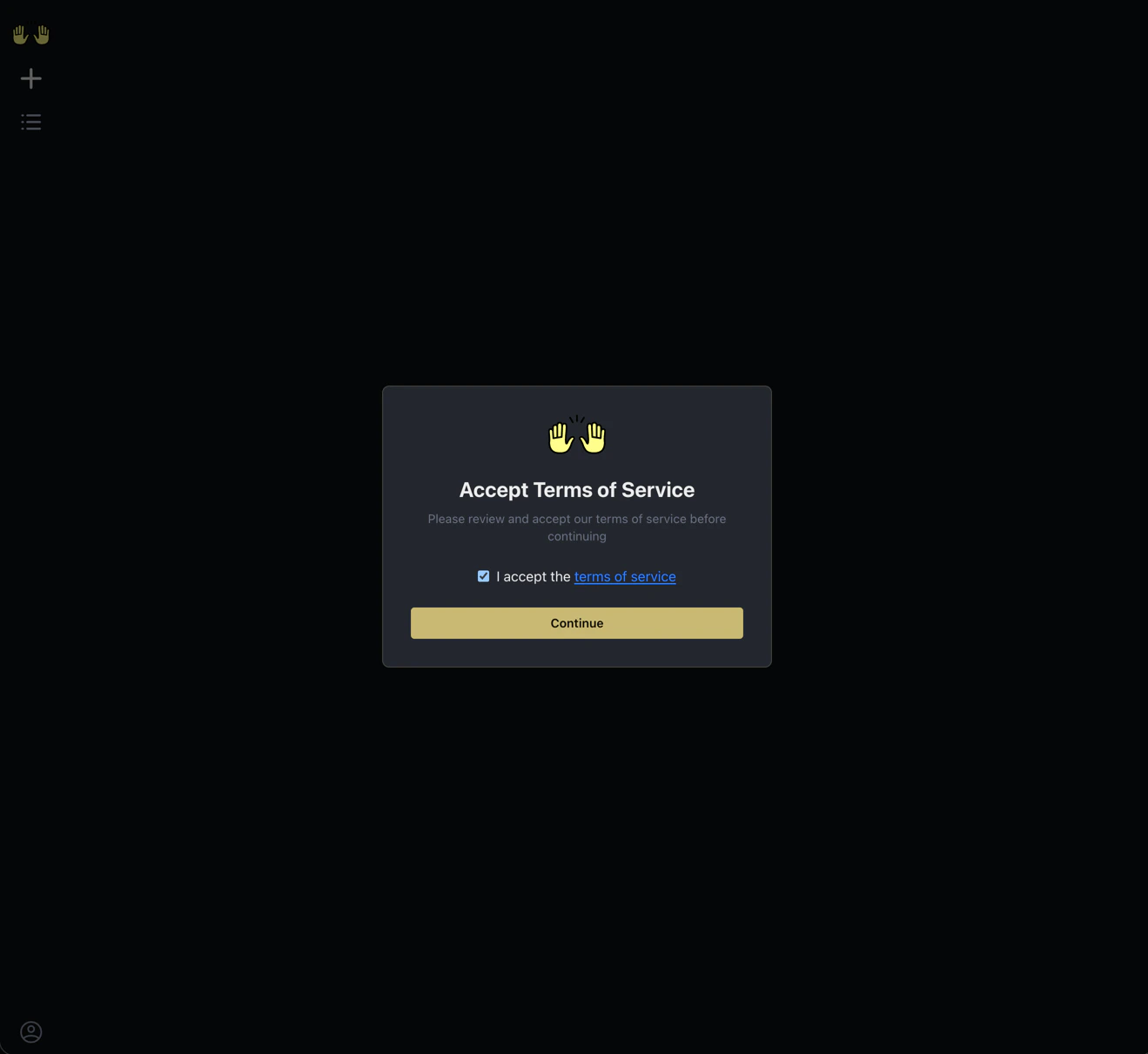
Accept the Terms of Service and click Continue.
pwd, write
OPENHANDS_INSTALL_PASS to /tmp/openhands-install-smoke.txt, and read the file
back with cat. Expand the terminal tool result and verify the actual workspace
path and marker output, rather than relying only on the model’s summary. The
Agent Canvas server status should show Running. Then verify repository discovery and a
repository-backed conversation.
Deployment readiness alone does not prove that inference and sandbox startup work.
If the first conversation fails, use Troubleshooting
to collect evidence before adding optional integrations.
Azure hosting and Azure model inference are separate. The Azure VM installation
and Anthropic workflow in this guide were validated on Replicated
0.74.0.
Keep Anthropic (Claude) selected for this installation. Do not select
Azure in LLM Configuration for this validated path. Azure OpenAI gateway
setup is deferred until a release contains the required provider fix and that
released package has been validated.Operations and Cleanup
- Back up the database and required persistent application data before upgrades or removal. A single VM and bundled PostgreSQL do not provide high availability.
- Keep the static IP, DNS record, and certificate renewal process together. Expired TLS can break login and external callbacks even while pods are healthy.
- Use the Admin Console for supported updates and deployment settings. If host or first-conversation validation fails, collect a support bundle before changing workloads.
- Stopping the VM is not complete cleanup: managed disks and public IPs can continue to incur charges.
Validation Scope
Validated with Replicated
0.74.0 on a dedicated Azure VM using
Standard_D16s_v3, Ubuntu 24.04 LTS and a 1,024 GiB Premium SSD OS disk:
host preflight passed on rerun without overrides, application preflights passed,
trusted HTTPS, GitHub login,
persistent PostgreSQL storage, an Anthropic-backed conversation and a manually
dispatched automation, and a read-only repository conversation. The automation
schedule was disabled after testing.Backup/restore, multiple nodes and automatic certificate renewal were not
covered by these checks. Replicated 0.76.0 was not validated for this guide.Next Steps
Enterprise Overview
Learn about OpenHands Enterprise features, integrations, and deployment options.
Prompting Best Practices
Get the most out of your AI coding agents with effective prompting techniques.
Troubleshooting
Collect diagnostics, inspect workloads, and contact OpenHands Support.
OpenHands Documentation
Explore the full OpenHands documentation for usage guides and features.