

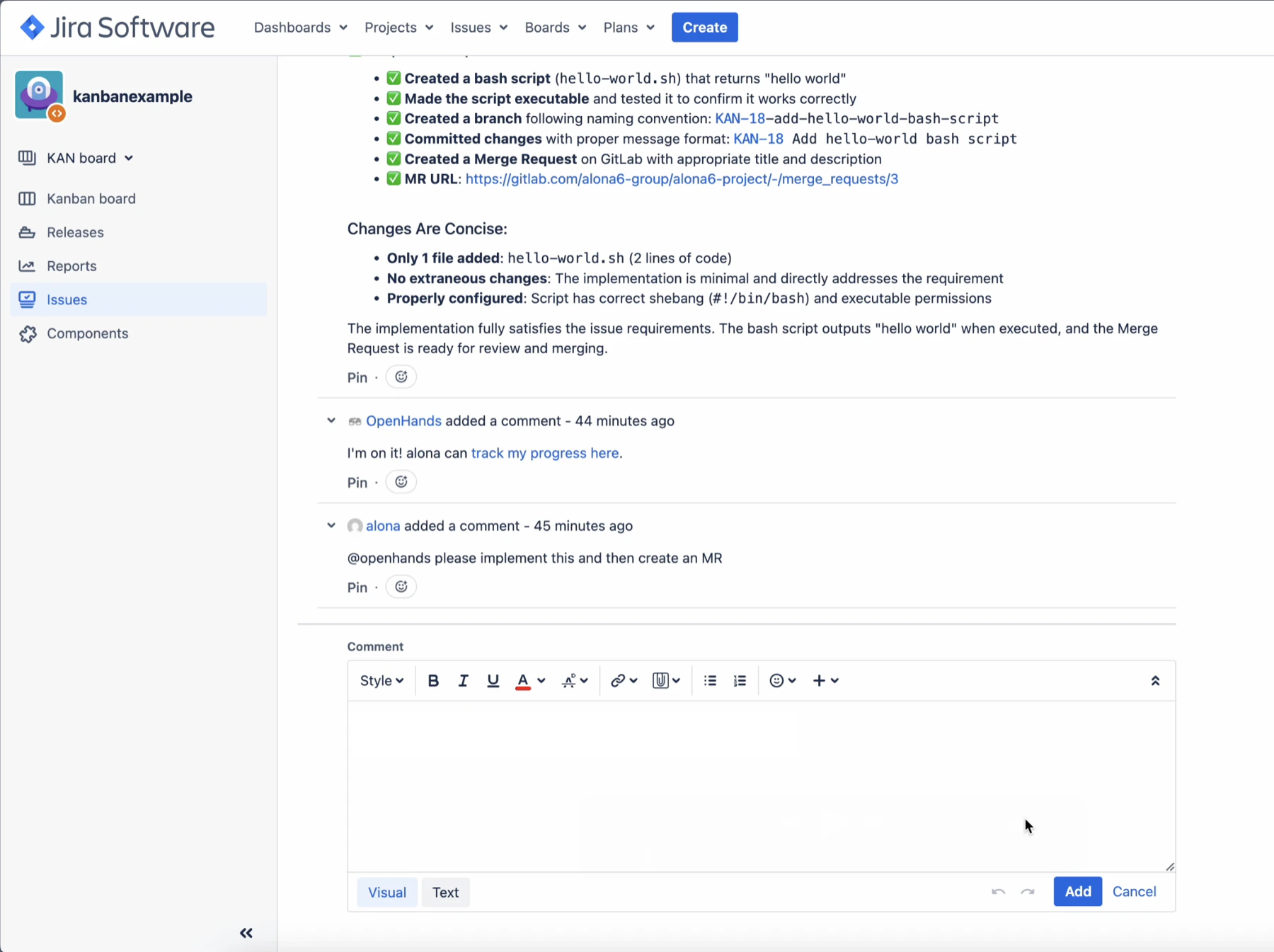
@openhands or by adding the openhands label.
Prerequisites
- Jira Data Center administrator access to create users, personal access tokens, OAuth applications, and webhooks.
- A currently supported Jira Data Center version with OAuth 2.0 incoming application links enabled. If you do not see External application and Incoming while creating the link, verify your Jira Data Center version and application link settings.
- Network access from OpenHands to Jira Data Center for API calls, and from Jira Data Center back to the OpenHands app URL for webhook delivery.
- If Jira Data Center uses an internal or self-signed certificate, upload the issuing CA in the OpenHands Enterprise Admin Console under Additional Trusted CA Certificates before deploying.
Jira Data Center setup is global for the OpenHands Enterprise installation.
Service account values are configured in the Admin Console. Webhook setup is
completed later inside OpenHands.
Create a Bot Token
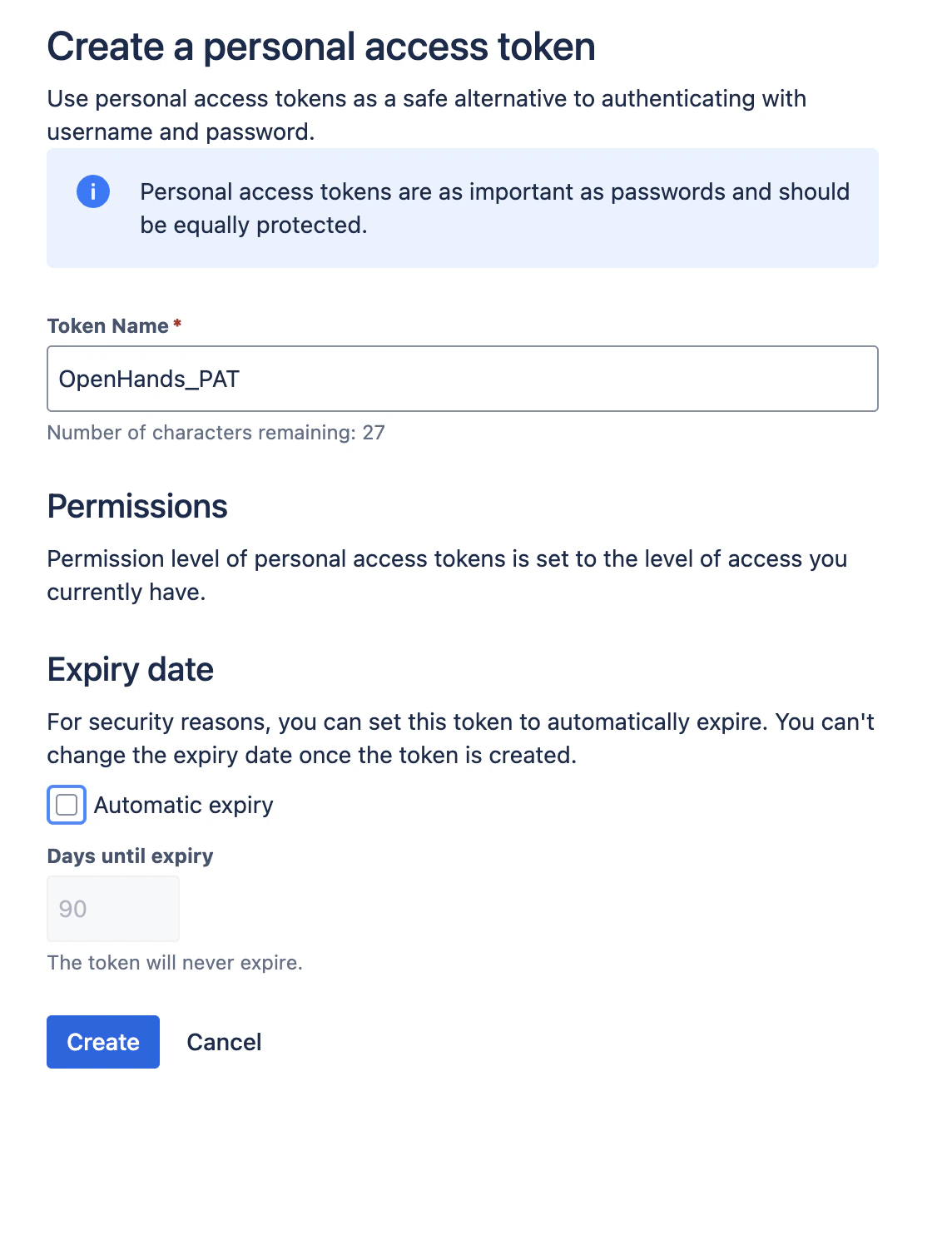
Create a dedicated Jira user for OpenHands. For example, create a user namedopenhands with an email address such as openhands-bot@company.com.
OpenHands uses this bot account to read issues, add comments, and add
reactions. Grant it access to all Jira projects where OpenHands should read and
comment.
After you have granted the bot user access, sign in as the openhands user and
create a Jira personal access token from the user’s profile. Store it securely.
You will need to paste the bot account email and PAT into the OpenHands
Enterprise Admin Console.
Create a Jira OAuth Application
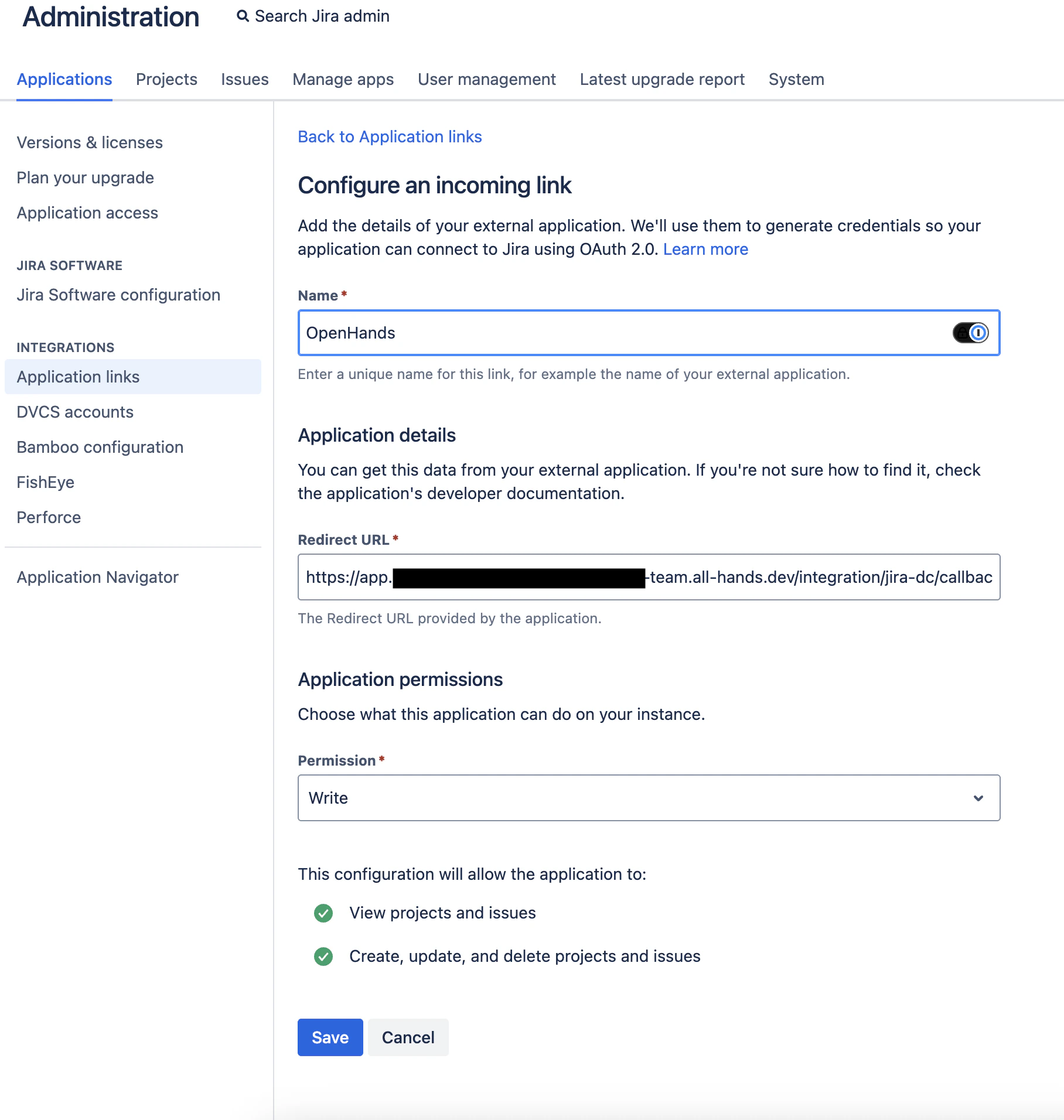
OAuth linking is recommended because it lets team members prove ownership of their Jira account before using OpenHands to process their Jira events. In Jira Data Center, open Administration > Applications > Application links and create a new link. When Jira asks what type of application to connect, choose External application. For the direction, choose Incoming because OpenHands connects to Jira during OAuth linking.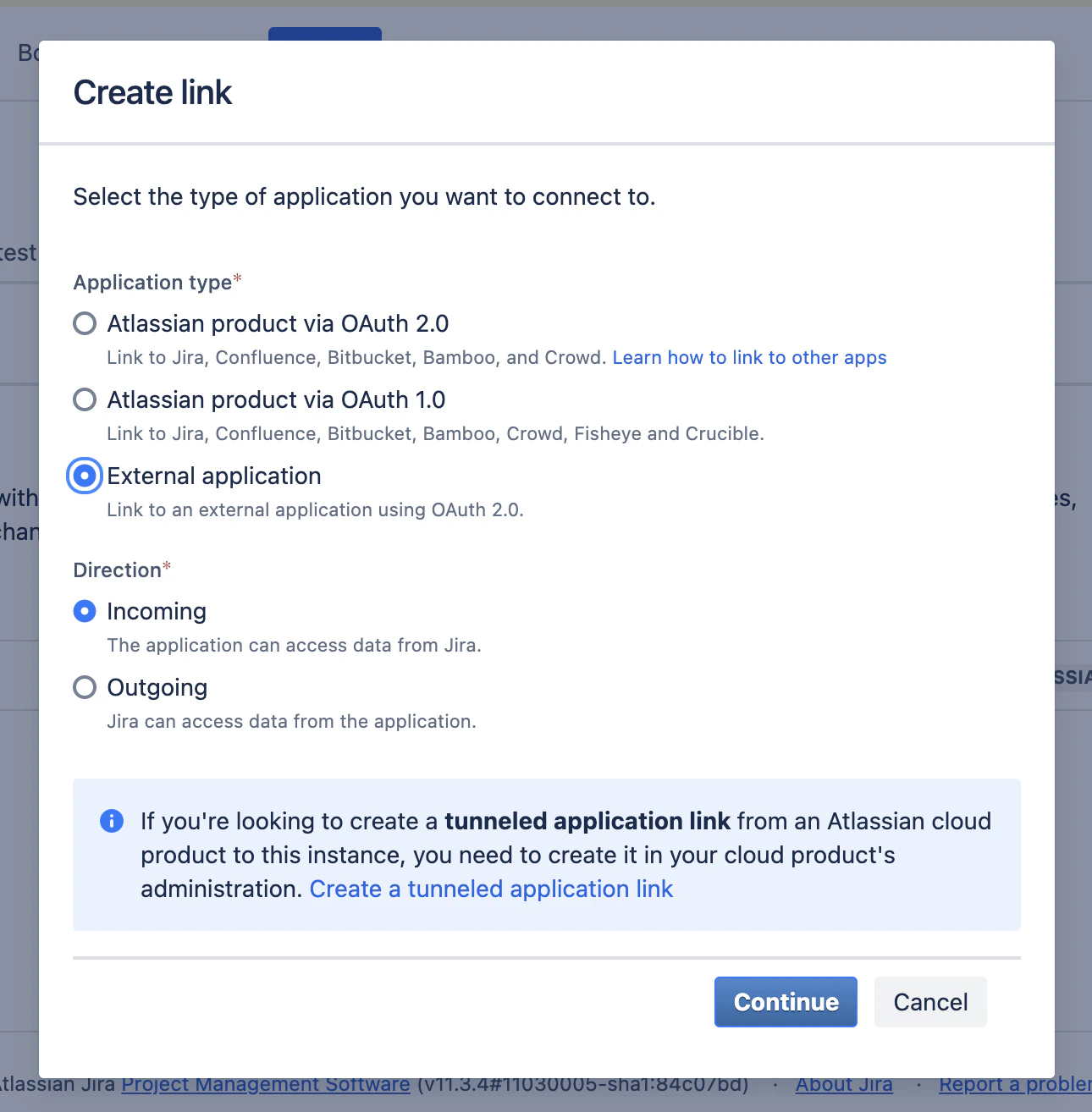
WRITE (allows OpenHands to link Jira
accounts and make Jira API calls within the user’s granted Jira permissions).
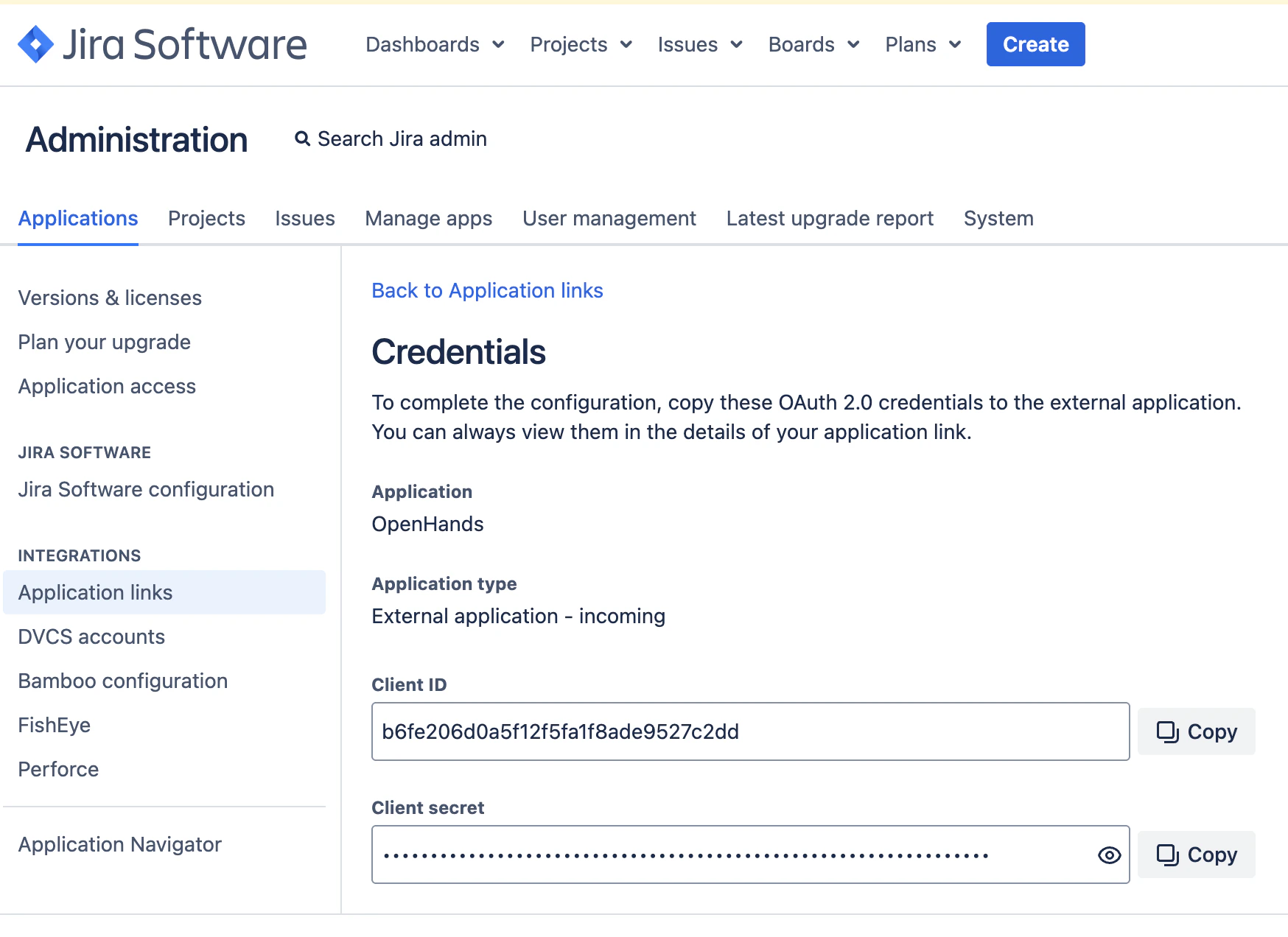
If your Jira Data Center installation cannot provide an OAuth application, you
can select email matching in the Admin Console instead. In that mode,
OpenHands links Jira users by matching their Jira email address to their
OpenHands email address.
Configure the Admin Console
Open the Replicated Admin Console for your OpenHands Enterprise installation and go to the application configuration page. In Jira Data Center Integration:- Enable Jira Data Center Integration.
- Select the user linking method:
- OAuth is recommended.
- Email match can be used if OAuth is not available.
- Enter the Jira Data Center Service Account Email.
- Enter the Jira Data Center Service Account PAT.
- If using OAuth, enter the Jira Data Center Base URL, including
https://. - If using OAuth, enter the Jira Data Center OAuth Client ID and OAuth Client Secret.
- Save and deploy the updated configuration.
Install the Jira Webhook
After OpenHands is deployed, sign in to OpenHands and open Settings > Integrations > Jira Data Center. If OAuth is enabled, click Connect and complete the Jira OAuth flow. Then set up the webhook using one of the options below.Automatic setup
Choose Install automatically and paste a short-lived Jira admin PAT. OpenHands uses this PAT once to call Jira’s webhook API and then discards it. The PAT is never stored. The automatic setup creates or updates a Jira global webhook namedOpenHands that points to this OpenHands URL.
Manual setup
Choose Set it up in Jira myself, then click Generate webhook details. OpenHands saves the connection and shows a webhook URL and signing secret.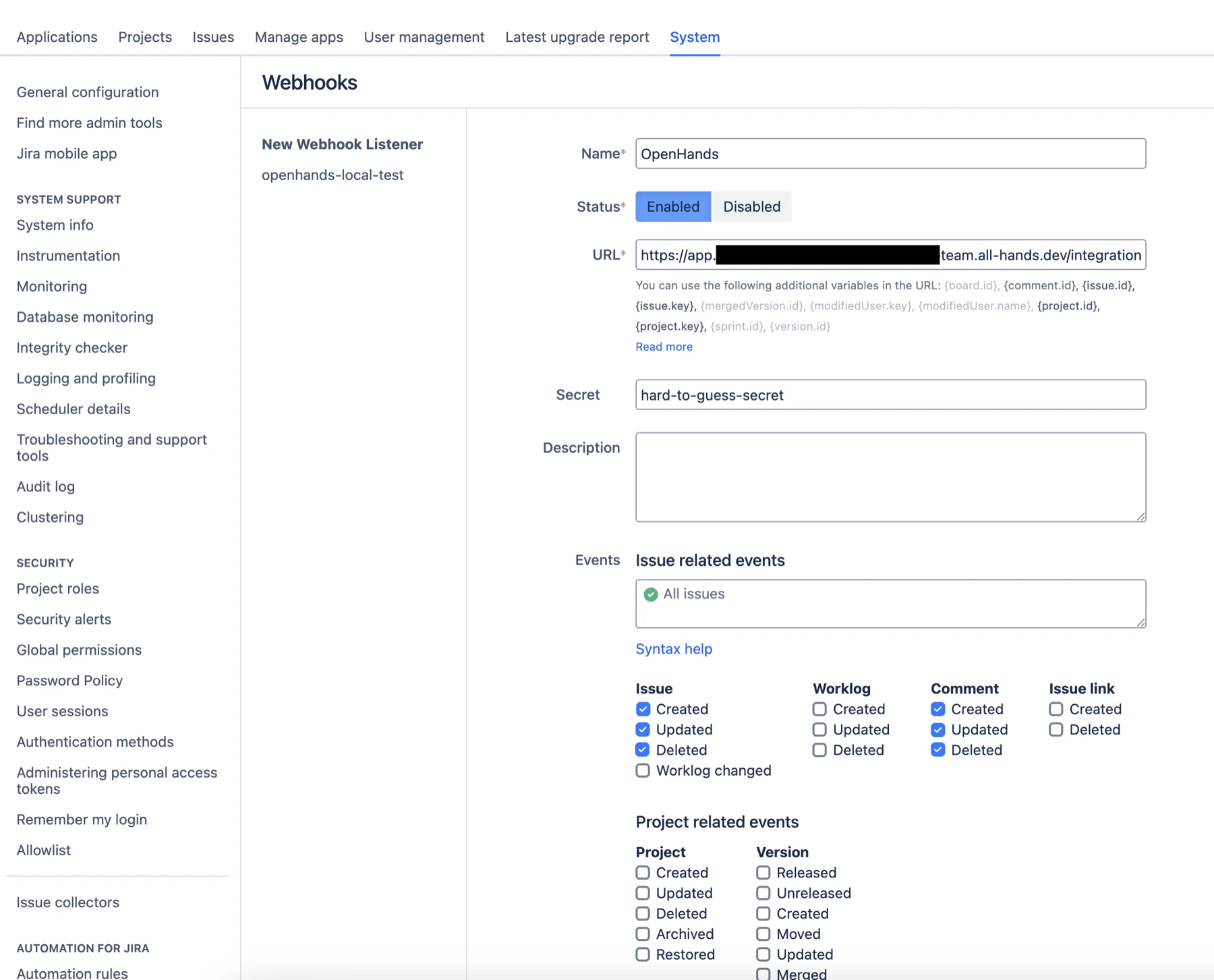
jira:issue_createdjira:issue_updatedjira:issue_deletedcomment_createdcomment_updatedcomment_deleted
Link Users
Each user who wants to invoke OpenHands from Jira should sign in to OpenHands and connect their Jira Data Center account from Settings > Integrations > Jira Data Center.Webhook setup is global for the OpenHands Enterprise installation. Only the
user setting up the integration needs to install the webhook or provide a Jira
admin PAT. Other teammates only need to connect their own Jira Data Center
account from Settings > Integrations before using
@openhands from Jira.Trigger OpenHands from Jira
Create or update a Jira issue with clear requirements. Include the target repository in the issue description or in a follow-up comment, for example:Repository: followed by the same
org/repo format configured in your connected source control provider.
Then trigger OpenHands with either:
- A Jira comment containing
@openhands. - The
openhandslabel on the issue.