

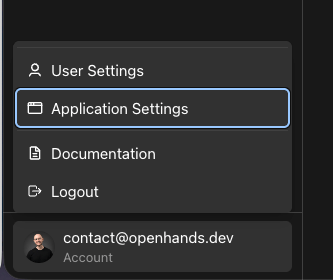
Application Settings. After you change a setting, click Save Changes.
Language
Choose the interface language from theLanguage dropdown. The language changes the OpenHands interface only. It
doesn’t change the language the agent uses.
Sound Notifications
Turn onSound Notifications to play a sound when the agent finishes, needs your input, or is waiting for you to
confirm an action. Sound notifications are off by default.
Sandbox Grouping Strategy
Sandbox Grouping Strategy controls whether a new conversation starts its own sandbox or joins one of your running
sandboxes in the current organization.
If you don’t have a saved strategy, OpenHands uses your deployment’s default. The supplied Docker Compose
configuration defaults to
Fewest Conversations. If your deployment has no configured default, OpenHands uses
No Grouping.
If you don’t have a saved strategy, the dropdown shows No Grouping. Saving Application Settings can save that
value as your preference and override the deployment default, even if you only changed another setting.
Grouping skips sandboxes that already hold the maximum number of conversations. Conversations in one sandbox share
its files, credentials, and compute, so a problem in one conversation can affect the others. For placement through
the API, see Conversations and Sandboxes.
Default Sandbox
Default Sandbox chooses the sandbox specification for new sandboxes. The list shows the specifications available
on your installation, including any custom sandbox images
that administrators add. Leave it at System default unless you need a specific one. If the specification you
choose is removed, OpenHands uses the system default.
Git Settings
Repository Cloning
OpenHands clones repositories with a shallow history by default, which starts faster for large repositories. Turn onFetch full Git history for repositories when your tasks need full history, such as tags, merge bases, blame, or
older commits.
Git Author
By default, OpenHands commits asopenhands with the email openhands@all-hands.dev. To commit as yourself, enter a
Git Username and Git Email. The agent adds OpenHands as a co-author on its commits.
GPG Key
To sign commits, clickSet GPG Key and paste an ASCII-armored GPG private key without a passphrase. OpenHands saves
it as a secret named GPG_KEY right away, without Save Changes. Setting a new key replaces the existing one. See
Secrets Management.
About
TheAbout section at the bottom of the page shows your OpenHands Enterprise release, the app server and Agent SDK
versions, and your license status and type. Click Copy version info to copy them, for example when you contact
support. To update your license, see Configure License Key.