> ## Documentation Index
> Fetch the complete documentation index at: https://docs.openhands.dev/llms.txt
> Use this file to discover all available pages before exploring further.
# Agent-Driven Daily Workflow
> Use the OpenHands Agent Canvas to gather, prioritize, and work through your daily development tasks
This guide shows how to use the OpenHands Agent Canvas as a daily development work queue. The agent gathers work from GitHub and Slack, organizes it by urgency, gives you one task at a time, and can dispatch separate agents for work that can happen in parallel.
The video above demonstrates the same workflow for readers who prefer a video walkthrough. You do not need to watch it to follow this guide.
## What you will build
At the end of this guide, one Agent Canvas conversation will:
1. Collect pull requests, issues, notifications, and relevant Slack activity.
2. Produce a prioritized report with links and a recommended first task.
3. Help you complete that task or start a separate agent to work on another task.
4. Continue with the next task when you are ready.
## Prerequisites
* [Install and start Agent Canvas](/openhands/usage/agent-canvas/setup).
* Complete [first-time setup](/openhands/usage/agent-canvas/first-time-setup), including an OpenHands agent profile, a connected backend, and an LLM.
* A GitHub account with access to the repositories you want to review.
* A Slack workspace and permission to create or install a Slack app.
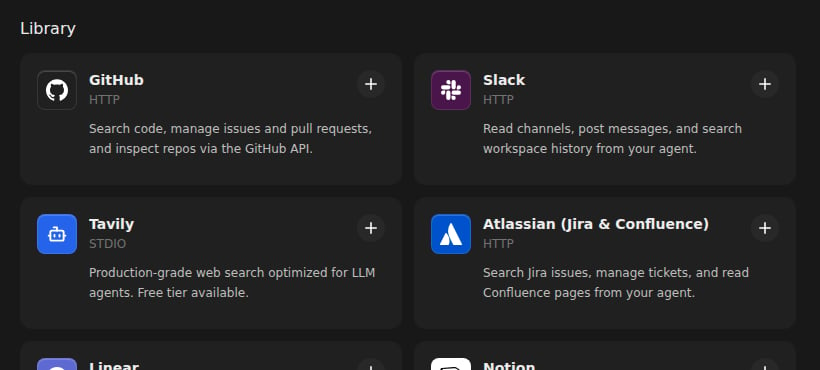
The MCP library lists built-in integrations, including GitHub and Slack. Choose the HTTP Slack integration shown here when following this guide.
The workflow can use other MCP integrations, such as Linear or Jira, but the examples below use GitHub and Slack.
## Step 1: Connect GitHub
The agent needs GitHub access to find assigned issues, pull requests that need your attention, review requests, notifications, and CI results.
### Create a GitHub token
1. Open [GitHub Developer Settings](https://github.com/settings/tokens).
2. Select **Fine-grained tokens** and choose **Generate new token**.
3. Give the token a name, select **Only select repositories** when possible, and set an expiration date.
4. Grant the minimum permissions for the work you want the agent to do:
| Purpose | Permissions |
| ------------------------------------ | ---------------------------------------------------------------------------------------------------------- |
| Gather and report work | `Metadata: read`, `Contents: read`, `Issues: read`, `Pull requests: read`, `Actions: read`, `Checks: read` |
| Work on code or issues | Add `Contents: write` and `Issues: write` |
| Update pull requests or post reviews | Add `Pull requests: write` |
5. Generate the token and copy it. GitHub shows it only once.
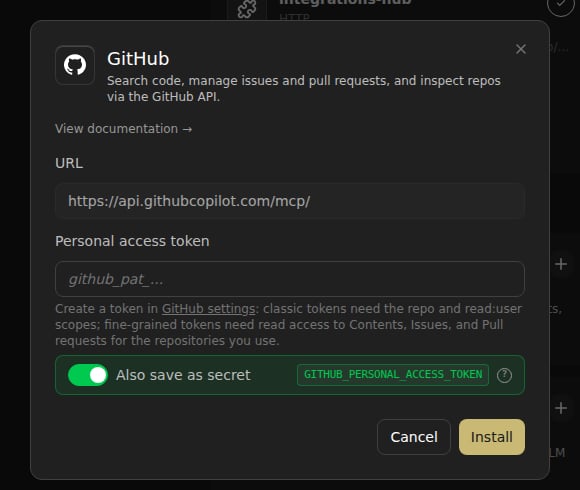
The GitHub server dialog shows where to enter the server token and save it as a backend secret.
### Add the GitHub MCP server
Use the backend where this conversation will run. The MCP server and its saved secret belong to that backend.
1. In Agent Canvas, confirm the correct backend in the backend switcher.
2. Open **Customize** in the left navigation.
3. Open **MCP Servers**.
4. Select **GitHub** from the MCP library.
5. Paste the token into the token field.
6. Leave the option to create a secret enabled, then save the server.
7. Wait for the server card to report a healthy connection.
See [MCP server settings](/openhands/usage/settings/mcp-settings) for general configuration and troubleshooting details. Do not paste tokens into the conversation itself.
## Step 2: Connect Slack
Slack access lets the agent find mentions, threads, and messages that need your response. The bot can read only channels it can access.
### Create and install a Slack app
1. Open the [Slack API dashboard](https://api.slack.com/apps) and select **Create New App** → **From scratch**.
2. Choose the workspace where the app will read messages.
3. In **OAuth & Permissions**, add these bot scopes:
| Scope | Purpose |
| ------------------ | ------------------------------------------------------------- |
| `channels:read` | List public channels |
| `channels:history` | Read public-channel messages |
| `groups:history` | Read private-channel messages where the bot is a member |
| `users:read` | Resolve people mentioned in messages |
| `chat:write` | Allow the agent to post replies when you explicitly ask it to |
4. Select **Install to Workspace**, approve the permissions, and copy the **Bot User OAuth Token**.
5. Invite the bot to each channel it should monitor. The bot cannot read channels it has not joined.
6. Find your workspace ID from your Slack workspace URL or [Slack's workspace-ID guide](https://slack.com/help/articles/221769328-Locate-your-Slack-URL-or-ID).
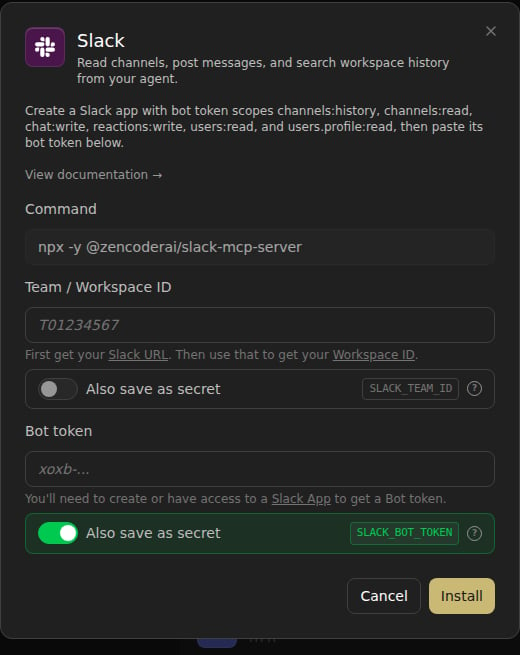
The built-in Slack integration dialog shows the workspace ID and bot-token fields, along with the option to save each value as a secret.
### Add the Slack MCP server
The same **Customize → MCP Servers** screen is used for Slack.
1. In Agent Canvas, open **Customize** → **MCP Servers**.
2. Select **Slack** from the MCP library.
3. Paste the bot token and enter the workspace ID.
4. Keep secret creation enabled and save the server.
5. Wait for a healthy connection, then verify that the bot can access the channels you want to search.
## Step 3: Start the daily workflow conversation
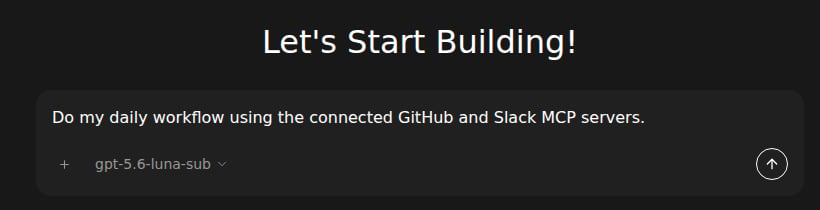
Create a new conversation in Agent Canvas and send this prompt:
```
Do my daily workflow using the connected GitHub and Slack MCP servers.
Gather:
- pull requests that need my attention or review
- assigned issues
- GitHub notifications and failing CI
- Slack mentions, threads, and messages that need a response
Group the results by urgency. For every item, include its title, why it matters,
and a direct link. End with the single highest-priority task for me to start.
Do not make changes or send messages without asking me first.
```
If you use Linear, Jira, or another connected service, add it explicitly to the prompt. For example:
```
Also check my assigned Linear issues and current cycle.
```
The agent may ask clarifying questions, such as which repositories or Slack channels to include. Answer those questions before asking it to produce the final report.
## Step 4: Read the prioritized report
Ask for a report in this format if the first response is not organized clearly:
```
Organize the results into:
1. Immediate action
2. PRs waiting for my response
3. PRs requesting my review
4. Assigned issues
5. Slack highlights
6. GitHub notifications
Sort each section by urgency. Include direct links and finish by recommending one first task.
```
A useful report looks like this:
```text theme={null}
## Immediate action
- Fix failing CI on PR #123 — blocking the release —
## PRs waiting for my response
- Address requested changes on PR #456 —
## PRs requesting my review
- Review PR #789 — changes authentication behavior —
## Assigned issues
- Document the new API behavior —
## Slack highlights
- Reply to the deployment question in #engineering —
## GitHub notifications
- Workflow failure on repository-name —
## First task
Fix the failing CI on PR #123.
```
The report is a starting point, not a guarantee that every source contains actionable work. Ask the agent to search a specific repository, channel, or date range when an important item is missing.
## Step 5: Work through one task at a time
When the agent recommends a task:
1. Ask for links if the report does not include them: `Give me the links for that task.`
2. Tell the agent whether you want investigation, implementation, or only a summary.
3. Set the safety boundary before it changes anything. For example:
```
Inspect the failing CI on PR #123, explain the root cause, and propose a fix.
Do not edit files, push changes, or comment on GitHub until I approve the plan.
```
4. After reviewing the result, ask it to implement the approved change, run the relevant checks, and report what changed.
5. When the task is complete, ask:
```
I finished that task. Re-check the remaining work and give me the next highest-priority item.
```
The agent can inspect and edit files in its configured workspace, but its ability to push code, update GitHub, or post to Slack depends on the permissions granted to the MCP servers and the confirmation policy you use.
## Step 6: Dispatch parallel work
Use a separate agent only for work that is independent of the task you are handling. For example:
```
Start a separate agent to inspect the failing CI and unaddressed review comments
on my other open pull requests. It may modify files in its own workspace and
run tests, but it must not push, merge, or post comments. Return a summary and
proposed changes when finished.
```
Before dispatching, specify:
* Which repositories, pull requests, or issues it may access
* Whether it may edit files
* Which tests it should run
* Whether it may push branches or post comments
* What it should return when finished
Keep related changes in separate workspaces or branches to avoid overwriting your active work. Review a subagent's summary and diff before asking it to push or make external changes. You can continue the original conversation while the separate agent runs, then inspect its conversation from the Agent Canvas conversation list.
## Troubleshooting
* **The agent cannot find GitHub work:** confirm the GitHub MCP server is healthy, the token includes the required repositories, and the token has not expired.
* **Slack results are empty:** confirm the bot is installed in the workspace and invited to each channel you want to search.
* **The agent reports no tools:** start a new conversation after adding or changing an MCP server; MCP configuration is loaded when a conversation starts.
* **The report is too broad:** name the repositories, Slack channels, date range, or task categories to include.
* **The agent tries to act too early:** state that it must ask for approval before editing files, pushing, or posting messages.
## Reference
* [Daily workflow video](https://youtu.be/S_wap45Iq8U) — optional video walkthrough
* [Agent Canvas overview](/openhands/usage/agent-canvas/overview)
* [Agent Canvas first-time setup](/openhands/usage/agent-canvas/first-time-setup)
* [MCP server settings](/openhands/usage/settings/mcp-settings)
* [Agent Canvas configuration](/openhands/usage/agent-canvas/customize-and-settings)
 The MCP library lists built-in integrations, including GitHub and Slack. Choose the HTTP Slack integration shown here when following this guide.
The workflow can use other MCP integrations, such as Linear or Jira, but the examples below use GitHub and Slack.
## Step 1: Connect GitHub
The agent needs GitHub access to find assigned issues, pull requests that need your attention, review requests, notifications, and CI results.
### Create a GitHub token
1. Open [GitHub Developer Settings](https://github.com/settings/tokens).
2. Select **Fine-grained tokens** and choose **Generate new token**.
3. Give the token a name, select **Only select repositories** when possible, and set an expiration date.
4. Grant the minimum permissions for the work you want the agent to do:
| Purpose | Permissions |
| ------------------------------------ | ---------------------------------------------------------------------------------------------------------- |
| Gather and report work | `Metadata: read`, `Contents: read`, `Issues: read`, `Pull requests: read`, `Actions: read`, `Checks: read` |
| Work on code or issues | Add `Contents: write` and `Issues: write` |
| Update pull requests or post reviews | Add `Pull requests: write` |
5. Generate the token and copy it. GitHub shows it only once.
The MCP library lists built-in integrations, including GitHub and Slack. Choose the HTTP Slack integration shown here when following this guide.
The workflow can use other MCP integrations, such as Linear or Jira, but the examples below use GitHub and Slack.
## Step 1: Connect GitHub
The agent needs GitHub access to find assigned issues, pull requests that need your attention, review requests, notifications, and CI results.
### Create a GitHub token
1. Open [GitHub Developer Settings](https://github.com/settings/tokens).
2. Select **Fine-grained tokens** and choose **Generate new token**.
3. Give the token a name, select **Only select repositories** when possible, and set an expiration date.
4. Grant the minimum permissions for the work you want the agent to do:
| Purpose | Permissions |
| ------------------------------------ | ---------------------------------------------------------------------------------------------------------- |
| Gather and report work | `Metadata: read`, `Contents: read`, `Issues: read`, `Pull requests: read`, `Actions: read`, `Checks: read` |
| Work on code or issues | Add `Contents: write` and `Issues: write` |
| Update pull requests or post reviews | Add `Pull requests: write` |
5. Generate the token and copy it. GitHub shows it only once.
 The GitHub server dialog shows where to enter the server token and save it as a backend secret.
### Add the GitHub MCP server
Use the backend where this conversation will run. The MCP server and its saved secret belong to that backend.
1. In Agent Canvas, confirm the correct backend in the backend switcher.
2. Open **Customize** in the left navigation.
3. Open **MCP Servers**.
4. Select **GitHub** from the MCP library.
5. Paste the token into the token field.
6. Leave the option to create a secret enabled, then save the server.
7. Wait for the server card to report a healthy connection.
See [MCP server settings](/openhands/usage/settings/mcp-settings) for general configuration and troubleshooting details. Do not paste tokens into the conversation itself.
## Step 2: Connect Slack
Slack access lets the agent find mentions, threads, and messages that need your response. The bot can read only channels it can access.
### Create and install a Slack app
1. Open the [Slack API dashboard](https://api.slack.com/apps) and select **Create New App** → **From scratch**.
2. Choose the workspace where the app will read messages.
3. In **OAuth & Permissions**, add these bot scopes:
| Scope | Purpose |
| ------------------ | ------------------------------------------------------------- |
| `channels:read` | List public channels |
| `channels:history` | Read public-channel messages |
| `groups:history` | Read private-channel messages where the bot is a member |
| `users:read` | Resolve people mentioned in messages |
| `chat:write` | Allow the agent to post replies when you explicitly ask it to |
4. Select **Install to Workspace**, approve the permissions, and copy the **Bot User OAuth Token**.
5. Invite the bot to each channel it should monitor. The bot cannot read channels it has not joined.
6. Find your workspace ID from your Slack workspace URL or [Slack's workspace-ID guide](https://slack.com/help/articles/221769328-Locate-your-Slack-URL-or-ID).
The GitHub server dialog shows where to enter the server token and save it as a backend secret.
### Add the GitHub MCP server
Use the backend where this conversation will run. The MCP server and its saved secret belong to that backend.
1. In Agent Canvas, confirm the correct backend in the backend switcher.
2. Open **Customize** in the left navigation.
3. Open **MCP Servers**.
4. Select **GitHub** from the MCP library.
5. Paste the token into the token field.
6. Leave the option to create a secret enabled, then save the server.
7. Wait for the server card to report a healthy connection.
See [MCP server settings](/openhands/usage/settings/mcp-settings) for general configuration and troubleshooting details. Do not paste tokens into the conversation itself.
## Step 2: Connect Slack
Slack access lets the agent find mentions, threads, and messages that need your response. The bot can read only channels it can access.
### Create and install a Slack app
1. Open the [Slack API dashboard](https://api.slack.com/apps) and select **Create New App** → **From scratch**.
2. Choose the workspace where the app will read messages.
3. In **OAuth & Permissions**, add these bot scopes:
| Scope | Purpose |
| ------------------ | ------------------------------------------------------------- |
| `channels:read` | List public channels |
| `channels:history` | Read public-channel messages |
| `groups:history` | Read private-channel messages where the bot is a member |
| `users:read` | Resolve people mentioned in messages |
| `chat:write` | Allow the agent to post replies when you explicitly ask it to |
4. Select **Install to Workspace**, approve the permissions, and copy the **Bot User OAuth Token**.
5. Invite the bot to each channel it should monitor. The bot cannot read channels it has not joined.
6. Find your workspace ID from your Slack workspace URL or [Slack's workspace-ID guide](https://slack.com/help/articles/221769328-Locate-your-Slack-URL-or-ID).
 The built-in Slack integration dialog shows the workspace ID and bot-token fields, along with the option to save each value as a secret.
### Add the Slack MCP server
The same **Customize → MCP Servers** screen is used for Slack.
1. In Agent Canvas, open **Customize** → **MCP Servers**.
2. Select **Slack** from the MCP library.
3. Paste the bot token and enter the workspace ID.
4. Keep secret creation enabled and save the server.
5. Wait for a healthy connection, then verify that the bot can access the channels you want to search.
## Step 3: Start the daily workflow conversation
Create a new conversation in Agent Canvas and send this prompt:
The built-in Slack integration dialog shows the workspace ID and bot-token fields, along with the option to save each value as a secret.
### Add the Slack MCP server
The same **Customize → MCP Servers** screen is used for Slack.
1. In Agent Canvas, open **Customize** → **MCP Servers**.
2. Select **Slack** from the MCP library.
3. Paste the bot token and enter the workspace ID.
4. Keep secret creation enabled and save the server.
5. Wait for a healthy connection, then verify that the bot can access the channels you want to search.
## Step 3: Start the daily workflow conversation
Create a new conversation in Agent Canvas and send this prompt:
 ```
Do my daily workflow using the connected GitHub and Slack MCP servers.
Gather:
- pull requests that need my attention or review
- assigned issues
- GitHub notifications and failing CI
- Slack mentions, threads, and messages that need a response
Group the results by urgency. For every item, include its title, why it matters,
and a direct link. End with the single highest-priority task for me to start.
Do not make changes or send messages without asking me first.
```
If you use Linear, Jira, or another connected service, add it explicitly to the prompt. For example:
```
Also check my assigned Linear issues and current cycle.
```
The agent may ask clarifying questions, such as which repositories or Slack channels to include. Answer those questions before asking it to produce the final report.
## Step 4: Read the prioritized report
Ask for a report in this format if the first response is not organized clearly:
```
Organize the results into:
1. Immediate action
2. PRs waiting for my response
3. PRs requesting my review
4. Assigned issues
5. Slack highlights
6. GitHub notifications
Sort each section by urgency. Include direct links and finish by recommending one first task.
```
A useful report looks like this:
```text theme={null}
## Immediate action
- Fix failing CI on PR #123 — blocking the release —
## PRs waiting for my response
- Address requested changes on PR #456 —
## PRs requesting my review
- Review PR #789 — changes authentication behavior —
## Assigned issues
- Document the new API behavior —
## Slack highlights
- Reply to the deployment question in #engineering —
## GitHub notifications
- Workflow failure on repository-name —
## First task
Fix the failing CI on PR #123.
```
The report is a starting point, not a guarantee that every source contains actionable work. Ask the agent to search a specific repository, channel, or date range when an important item is missing.
## Step 5: Work through one task at a time
When the agent recommends a task:
1. Ask for links if the report does not include them: `Give me the links for that task.`
2. Tell the agent whether you want investigation, implementation, or only a summary.
3. Set the safety boundary before it changes anything. For example:
```
Inspect the failing CI on PR #123, explain the root cause, and propose a fix.
Do not edit files, push changes, or comment on GitHub until I approve the plan.
```
4. After reviewing the result, ask it to implement the approved change, run the relevant checks, and report what changed.
5. When the task is complete, ask:
```
I finished that task. Re-check the remaining work and give me the next highest-priority item.
```
The agent can inspect and edit files in its configured workspace, but its ability to push code, update GitHub, or post to Slack depends on the permissions granted to the MCP servers and the confirmation policy you use.
## Step 6: Dispatch parallel work
Use a separate agent only for work that is independent of the task you are handling. For example:
```
Start a separate agent to inspect the failing CI and unaddressed review comments
on my other open pull requests. It may modify files in its own workspace and
run tests, but it must not push, merge, or post comments. Return a summary and
proposed changes when finished.
```
Before dispatching, specify:
* Which repositories, pull requests, or issues it may access
* Whether it may edit files
* Which tests it should run
* Whether it may push branches or post comments
* What it should return when finished
Keep related changes in separate workspaces or branches to avoid overwriting your active work. Review a subagent's summary and diff before asking it to push or make external changes. You can continue the original conversation while the separate agent runs, then inspect its conversation from the Agent Canvas conversation list.
## Troubleshooting
* **The agent cannot find GitHub work:** confirm the GitHub MCP server is healthy, the token includes the required repositories, and the token has not expired.
* **Slack results are empty:** confirm the bot is installed in the workspace and invited to each channel you want to search.
* **The agent reports no tools:** start a new conversation after adding or changing an MCP server; MCP configuration is loaded when a conversation starts.
* **The report is too broad:** name the repositories, Slack channels, date range, or task categories to include.
* **The agent tries to act too early:** state that it must ask for approval before editing files, pushing, or posting messages.
## Reference
* [Daily workflow video](https://youtu.be/S_wap45Iq8U) — optional video walkthrough
* [Agent Canvas overview](/openhands/usage/agent-canvas/overview)
* [Agent Canvas first-time setup](/openhands/usage/agent-canvas/first-time-setup)
* [MCP server settings](/openhands/usage/settings/mcp-settings)
* [Agent Canvas configuration](/openhands/usage/agent-canvas/customize-and-settings)
```
Do my daily workflow using the connected GitHub and Slack MCP servers.
Gather:
- pull requests that need my attention or review
- assigned issues
- GitHub notifications and failing CI
- Slack mentions, threads, and messages that need a response
Group the results by urgency. For every item, include its title, why it matters,
and a direct link. End with the single highest-priority task for me to start.
Do not make changes or send messages without asking me first.
```
If you use Linear, Jira, or another connected service, add it explicitly to the prompt. For example:
```
Also check my assigned Linear issues and current cycle.
```
The agent may ask clarifying questions, such as which repositories or Slack channels to include. Answer those questions before asking it to produce the final report.
## Step 4: Read the prioritized report
Ask for a report in this format if the first response is not organized clearly:
```
Organize the results into:
1. Immediate action
2. PRs waiting for my response
3. PRs requesting my review
4. Assigned issues
5. Slack highlights
6. GitHub notifications
Sort each section by urgency. Include direct links and finish by recommending one first task.
```
A useful report looks like this:
```text theme={null}
## Immediate action
- Fix failing CI on PR #123 — blocking the release —
## PRs waiting for my response
- Address requested changes on PR #456 —
## PRs requesting my review
- Review PR #789 — changes authentication behavior —
## Assigned issues
- Document the new API behavior —
## Slack highlights
- Reply to the deployment question in #engineering —
## GitHub notifications
- Workflow failure on repository-name —
## First task
Fix the failing CI on PR #123.
```
The report is a starting point, not a guarantee that every source contains actionable work. Ask the agent to search a specific repository, channel, or date range when an important item is missing.
## Step 5: Work through one task at a time
When the agent recommends a task:
1. Ask for links if the report does not include them: `Give me the links for that task.`
2. Tell the agent whether you want investigation, implementation, or only a summary.
3. Set the safety boundary before it changes anything. For example:
```
Inspect the failing CI on PR #123, explain the root cause, and propose a fix.
Do not edit files, push changes, or comment on GitHub until I approve the plan.
```
4. After reviewing the result, ask it to implement the approved change, run the relevant checks, and report what changed.
5. When the task is complete, ask:
```
I finished that task. Re-check the remaining work and give me the next highest-priority item.
```
The agent can inspect and edit files in its configured workspace, but its ability to push code, update GitHub, or post to Slack depends on the permissions granted to the MCP servers and the confirmation policy you use.
## Step 6: Dispatch parallel work
Use a separate agent only for work that is independent of the task you are handling. For example:
```
Start a separate agent to inspect the failing CI and unaddressed review comments
on my other open pull requests. It may modify files in its own workspace and
run tests, but it must not push, merge, or post comments. Return a summary and
proposed changes when finished.
```
Before dispatching, specify:
* Which repositories, pull requests, or issues it may access
* Whether it may edit files
* Which tests it should run
* Whether it may push branches or post comments
* What it should return when finished
Keep related changes in separate workspaces or branches to avoid overwriting your active work. Review a subagent's summary and diff before asking it to push or make external changes. You can continue the original conversation while the separate agent runs, then inspect its conversation from the Agent Canvas conversation list.
## Troubleshooting
* **The agent cannot find GitHub work:** confirm the GitHub MCP server is healthy, the token includes the required repositories, and the token has not expired.
* **Slack results are empty:** confirm the bot is installed in the workspace and invited to each channel you want to search.
* **The agent reports no tools:** start a new conversation after adding or changing an MCP server; MCP configuration is loaded when a conversation starts.
* **The report is too broad:** name the repositories, Slack channels, date range, or task categories to include.
* **The agent tries to act too early:** state that it must ask for approval before editing files, pushing, or posting messages.
## Reference
* [Daily workflow video](https://youtu.be/S_wap45Iq8U) — optional video walkthrough
* [Agent Canvas overview](/openhands/usage/agent-canvas/overview)
* [Agent Canvas first-time setup](/openhands/usage/agent-canvas/first-time-setup)
* [MCP server settings](/openhands/usage/settings/mcp-settings)
* [Agent Canvas configuration](/openhands/usage/agent-canvas/customize-and-settings)