> ## Documentation Index
> Fetch the complete documentation index at: https://docs.openhands.dev/llms.txt
> Use this file to discover all available pages before exploring further.
# Language Model (LLM) Settings
> This page goes over how to set the LLM to use in OpenHands, including LLM profiles for switching models during conversations.
## Overview
The LLM settings allows you to bring your own LLM and API key to use with OpenHands. This can be any model that is
supported by litellm, but it requires a powerful model to work properly.
[See our recommended models here](/openhands/usage/llms/llms#model-recommendations). You can also configure some
additional LLM settings on this page.
## Basic LLM Settings
The most popular providers and models are available in the basic settings. Some of the providers have been verified to
work with OpenHands such as the [OpenHands provider](/openhands/usage/llms/openhands-llms), Anthropic, OpenAI and
Mistral AI.
1. Choose your preferred provider using the `LLM Provider` dropdown.
2. Choose your favorite model using the `LLM Model` dropdown.
3. Set the `API Key` for your chosen provider and model and click `Save Changes`.
This will set the LLM for all new conversations. If you want to use this new LLM for older conversations, you must first
restart older conversations.
## Advanced LLM Settings
Toggling the `Advanced` settings, allows you to set custom models as well as some additional LLM settings. You can use
this when your preferred provider or model does not exist in the basic settings dropdowns.
1. `Custom Model`: Set your custom model with the provider as the prefix. For information on how to specify the
custom model, follow [the specific provider docs on litellm](https://docs.litellm.ai/docs/providers). We also have
[some guides for popular providers](/openhands/usage/llms/llms#llm-provider-guides).
2. `Base URL`: If your provider has a specific base URL, specify it here.
3. `API Key`: Set the API key for your custom model.
4. Click `Save Changes`
### Memory Condensation
The memory condenser manages the language model's context by ensuring only the most important and relevant information
is presented. Keeping the context focused improves latency and reduces token consumption, especially in long-running
conversations.
* `Enable memory condensation` - Turn on this setting to activate this feature.
* `Memory condenser max history size` - The condenser will summarize the history after this many events.
## LLM Profiles
LLM profiles allow you to save multiple LLM configurations and switch between them, even during an active conversation.
This is useful when you want to use different models for different tasks—for example, a faster model for simple tasks
and a more powerful model for complex reasoning.
### Creating an LLM Profile
Profiles are automatically created when you save a configuration on the LLM settings page. To create a new profile:
1. Navigate to `Settings > LLM`.
2. Configure your desired LLM provider, model, and API key.
3. Click `Save Changes`.
A new profile will be created with your configuration. The most recently saved profile becomes the active profile
for new conversations.
Alternatively, you can click the `Add LLM Profile` button in the Available Profiles section to create a new profile
directly.
### Managing LLM Profiles
You can manage your saved profiles in the `Available Profiles` section of the LLM settings page. Each profile shows:
* **Profile name**: A unique identifier for the configuration
* **Model**: The LLM model associated with the profile
* **Active badge**: Indicates which profile is currently active
Click the menu icon (three dots) on any profile to access these actions:
* **Edit**: Modify the profile's LLM configuration
* **Rename**: Change the profile name
* **Set as Active**: Make this profile the default for new conversations
* **Delete**: Remove the profile
You can save up to 10 LLM profiles per account. Delete unused profiles if you need to create new ones.
### Switching Profiles During a Conversation
One of the most powerful features of LLM profiles is the ability to switch models mid-conversation without losing context.
This allows you to:
* Start with a fast, cost-effective model for initial exploration
* Switch to a more powerful model when the task requires deeper reasoning
* Use specialized models for specific types of tasks
For example, you might create profiles like these:
| Example Profile | Example Use | Example Cost Pattern |
| ----------------- | ------------------------------------------ | ------------------------------ |
| `claude-opus-4-7` | Frontend design and visual polish | Higher cost |
| `gpt-5.5` | Planning, instruction following, or review | Balanced for complex reasoning |
| `minimax-m2.7` | Day-to-day implementation | Lower cost |
The profile names above are examples. Use names that match the saved profiles in your OpenHands environment.
To switch profiles during an active conversation:
1. Look for the **profile selector button** in the chat input area. It displays the name of the currently active profile.
2. Click the button to open the profile menu.
3. Select the profile you want to switch to.
The conversation will continue with the new model, maintaining all previous context and history. The switch takes effect
immediately for subsequent messages.
The profile selector shows a checkmark next to the currently active profile. If no profile matches the running model,
the button will show "Select a model" as a placeholder.
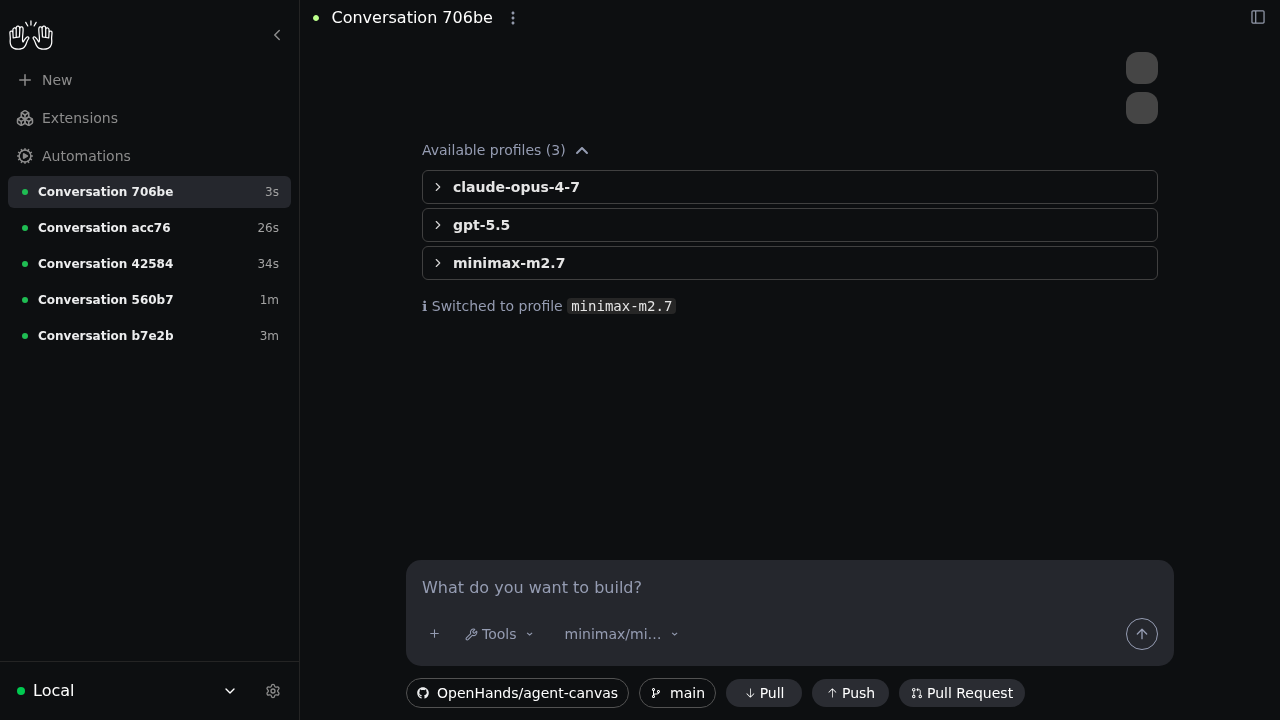
### Switching Profiles with the `/model` Slash Command
You can also list and switch profiles directly from the chat input using the `/model` slash command:
* `/model` — Lists your saved LLM profiles.
* `/model ` — Switches the running conversation to that profile.
This is equivalent to using the profile selector button and works without leaving the chat. Profile names must match the
saved profile exactly. The switch applies to future agent steps; it does not rerun earlier messages.
A common workflow is to use a stronger model for planning and then switch to a lower-cost model for implementation:
1. Start the conversation with `gpt-5.5` selected.
2. Ask OpenHands to plan the work before editing files:
```text theme={null}
Plan the OpenHands features page. Do not edit files yet.
```
3. Send `/model` to list available profiles.
4. Send `/model minimax-m2.7` to switch profiles.
5. Ask OpenHands to implement the plan:
```text theme={null}
Now implement the plan.
```
 Model switching requires saved LLM profiles. If `/model` is not suggested in the chat input, create profiles in
`Settings > LLM` and confirm that your backend supports profile switching.
### Letting the Agent Select Models Dynamically
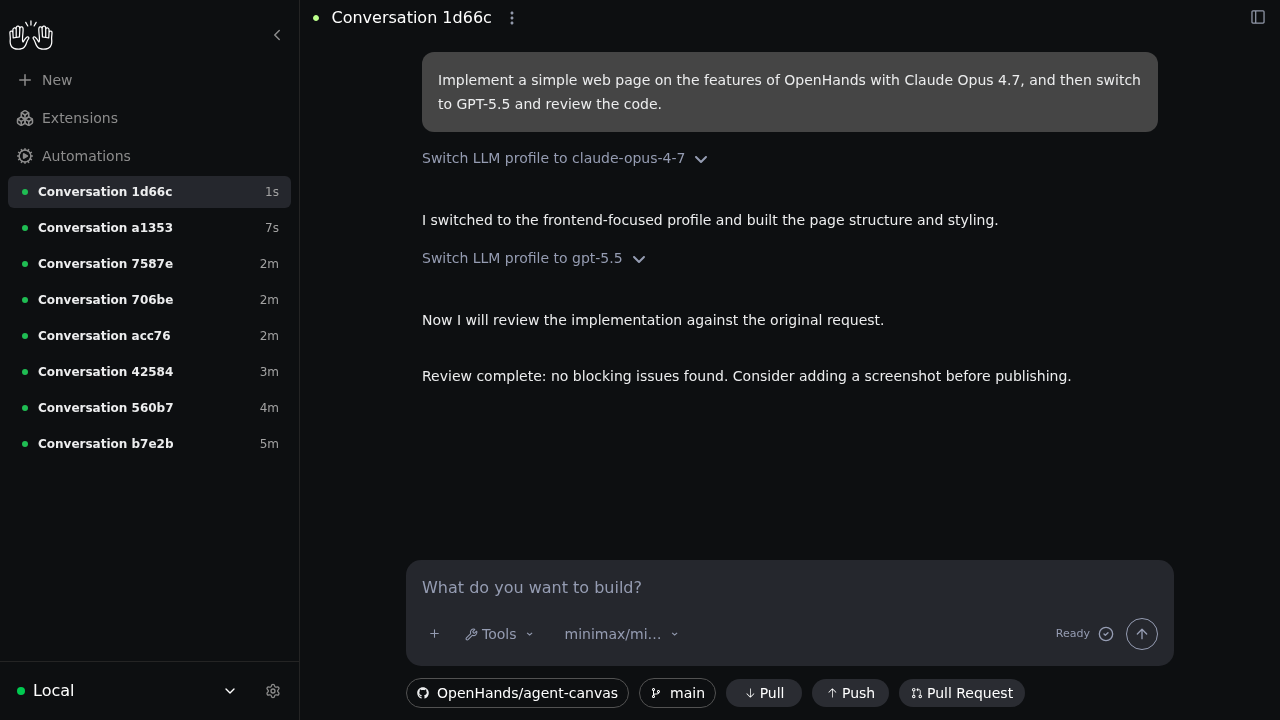
When the model selection tool is available, the agent can choose a saved profile for the next phase of work. For example,
it can implement frontend changes with a design-focused model and then switch to an instruction-following model for review.
In the Agent SDK, this capability is exposed as the built-in `SwitchLLMTool`, which produces `switch_llm` tool calls.
Agent Canvas displays those tool calls as `Switch LLM profile` events in the conversation timeline so you can see when
and why the model changed.
Create the profiles you want the agent to choose from, then ask OpenHands to use specific profiles for different phases
of the task. For example:
```text theme={null}
Implement a simple web page on the features of OpenHands with Claude Opus 4.7, and then switch to GPT-5.5 and review the code.
```
Model switching requires saved LLM profiles. If `/model` is not suggested in the chat input, create profiles in
`Settings > LLM` and confirm that your backend supports profile switching.
### Letting the Agent Select Models Dynamically
When the model selection tool is available, the agent can choose a saved profile for the next phase of work. For example,
it can implement frontend changes with a design-focused model and then switch to an instruction-following model for review.
In the Agent SDK, this capability is exposed as the built-in `SwitchLLMTool`, which produces `switch_llm` tool calls.
Agent Canvas displays those tool calls as `Switch LLM profile` events in the conversation timeline so you can see when
and why the model changed.
Create the profiles you want the agent to choose from, then ask OpenHands to use specific profiles for different phases
of the task. For example:
```text theme={null}
Implement a simple web page on the features of OpenHands with Claude Opus 4.7, and then switch to GPT-5.5 and review the code.
```
 The model selection tool behaves as follows:
* The current model decides to call the tool and provides a short reason.
* The switch takes effect on the next LLM call after the tool succeeds.
* Conversation history, files, and task state are preserved.
* If a profile name is missing or misspelled, the tool returns an error and the agent should choose a valid profile or
ask for help.
For custom SDK agents, include `SwitchLLMTool` when constructing the agent. See the SDK example:
[examples/01\_standalone\_sdk/49\_switch\_llm\_tool.py](https://github.com/OpenHands/software-agent-sdk/blob/main/examples/01_standalone_sdk/49_switch_llm_tool.py).
### How Profile Switching Works
When you switch profiles during a conversation:
1. The new LLM configuration is loaded from your saved profile
2. The conversation context (all previous messages and actions) is preserved
3. Future messages are processed using the new model
4. The conversation metadata is updated to reflect the new model
This seamless switching allows you to leverage different models' strengths without starting a new conversation or
losing your progress.
### Best Practices for Using LLM Profiles
* **Name profiles descriptively**: Use names like "Claude Sonnet - Fast" or "GPT-4 - Complex Tasks" to easily
identify which profile to use.
* **Create task-specific profiles**: Set up profiles optimized for different workflows, such as code review,
documentation, or debugging.
* **Keep API keys updated**: Ensure each profile has a valid API key.
* **Test before critical work**: When switching profiles mid-conversation, send a simple test message to confirm
the new model is responding correctly.
The model selection tool behaves as follows:
* The current model decides to call the tool and provides a short reason.
* The switch takes effect on the next LLM call after the tool succeeds.
* Conversation history, files, and task state are preserved.
* If a profile name is missing or misspelled, the tool returns an error and the agent should choose a valid profile or
ask for help.
For custom SDK agents, include `SwitchLLMTool` when constructing the agent. See the SDK example:
[examples/01\_standalone\_sdk/49\_switch\_llm\_tool.py](https://github.com/OpenHands/software-agent-sdk/blob/main/examples/01_standalone_sdk/49_switch_llm_tool.py).
### How Profile Switching Works
When you switch profiles during a conversation:
1. The new LLM configuration is loaded from your saved profile
2. The conversation context (all previous messages and actions) is preserved
3. Future messages are processed using the new model
4. The conversation metadata is updated to reflect the new model
This seamless switching allows you to leverage different models' strengths without starting a new conversation or
losing your progress.
### Best Practices for Using LLM Profiles
* **Name profiles descriptively**: Use names like "Claude Sonnet - Fast" or "GPT-4 - Complex Tasks" to easily
identify which profile to use.
* **Create task-specific profiles**: Set up profiles optimized for different workflows, such as code review,
documentation, or debugging.
* **Keep API keys updated**: Ensure each profile has a valid API key.
* **Test before critical work**: When switching profiles mid-conversation, send a simple test message to confirm
the new model is responding correctly.