> ## Documentation Index
> Fetch the complete documentation index at: https://docs.openhands.dev/llms.txt
> Use this file to discover all available pages before exploring further.
# GitLab Integration
> This guide walks you through the process of installing OpenHands Cloud for your GitLab repositories. Once set up, it will allow OpenHands to work with your GitLab repository through the Cloud UI or straight from GitLab!.
## Prerequisites
* Signed in to [OpenHands Cloud](https://app.all-hands.dev) with [a GitLab account](/openhands/usage/cloud/openhands-cloud).
## Adding GitLab Repository Access
Upon signing into OpenHands Cloud with a GitLab account, OpenHands will have access to your repositories.
## Working With GitLab Repos in Openhands Cloud
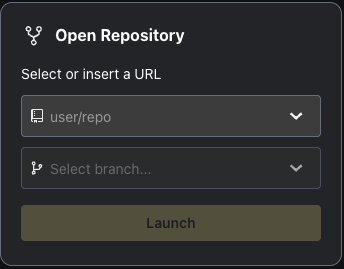
After signing in with a Gitlab account, use the `Open Repository` section to select the appropriate repository and
branch you'd like OpenHands to work on. Then click on `Launch` to start the conversation!
 ## Using Tokens with Reduced Scopes
OpenHands requests an API-scoped token during OAuth authentication. By default, this token is provided to the agent.
To restrict the agent's permissions, [you can define a custom secret](/openhands/usage/settings/secrets-settings) `GITLAB_TOKEN`,
which will override the default token assigned to the agent. While the high-permission API token is still requested
and used for other components of the application (e.g. opening merge requests), the agent will not have access to it.
## Working on GitLab Issues and Merge Requests Using Openhands
This feature works for personal projects and is available for group projects with a
[Premium or Ultimate tier subscription](https://docs.gitlab.com/user/project/integrations/webhooks/#group-webhooks).
A webhook is automatically installed within a few minutes after the owner/maintainer of the project or group logs into
OpenHands Cloud.
Giving GitLab repository access to OpenHands also allows you to work on GitLab issues and merge requests directly.
### Working with Issues
On your repository, label an issue with `openhands` or add a message starting with `@openhands`. OpenHands will:
1. Comment on the issue to let you know it is working on it.
* You can click on the link to track the progress on OpenHands Cloud.
2. Open a merge request if it determines that the issue has been successfully resolved.
3. Comment on the issue with a summary of the performed tasks and a link to the PR.
### Working with Merge Requests
To get OpenHands to work on merge requests, mention `@openhands` in the comments to:
* Ask questions
* Request updates
* Get code explanations
## Managing GitLab Webhooks
The GitLab webhook management feature allows you to view and manage webhooks for your GitLab projects and groups directly from the OpenHands Cloud Integrations page.
### Accessing Webhook Management
The webhook management table is available on the Integrations page when:
* You are signed in to OpenHands Cloud with a GitLab account
* Your GitLab token is connected
To access it:
1. Navigate to the `Settings > Integrations` page
2. Find the GitLab section
3. If your GitLab token is connected, you'll see the webhook management table below the connection status
### Viewing Webhook Status
The webhook management table displays GitLab groups and individual projects (not associated with any groups) that are accessible to OpenHands.
* **Resource**: The name and full path of the project or group
* **Type**: Whether it's a "project" or "group"
* **Status**: The current webhook installation status:
* **Installed**: The webhook is active and working
* **Not Installed**: No webhook is currently installed
* **Failed**: A previous installation attempt failed (error details are shown below the status)
### Reinstalling Webhooks
If a webhook is not installed or has failed, you can reinstall it:
1. Find the resource in the webhook management table
2. Click the `Reinstall` button in the Action column
3. The button will show `Reinstalling...` while the operation is in progress
4. Once complete, the status will update to reflect the result
To reinstall an existing webhook, you must first delete the current webhook
from the GitLab UI before using the Reinstall button in OpenHands Cloud.
**Important behaviors:**
* The Reinstall button is disabled if the webhook is already installed
* Only one reinstall operation can run at a time
* After a successful reinstall, the button remains disabled to prevent duplicate installations
* If a reinstall fails, the error message is displayed below the status badge
* The resources list automatically refreshes after a reinstall completes
### Constraints and Limitations
* The webhook management table only displays resources that are accessible with your connected GitLab token
* Webhook installation requires Admin or Owner permissions on the GitLab project or group
## Next Steps
* [Learn about the Cloud UI](/openhands/usage/cloud/cloud-ui).
* [Use the Cloud API](/openhands/usage/cloud/cloud-api) to programmatically interact with OpenHands.
## Using Tokens with Reduced Scopes
OpenHands requests an API-scoped token during OAuth authentication. By default, this token is provided to the agent.
To restrict the agent's permissions, [you can define a custom secret](/openhands/usage/settings/secrets-settings) `GITLAB_TOKEN`,
which will override the default token assigned to the agent. While the high-permission API token is still requested
and used for other components of the application (e.g. opening merge requests), the agent will not have access to it.
## Working on GitLab Issues and Merge Requests Using Openhands
This feature works for personal projects and is available for group projects with a
[Premium or Ultimate tier subscription](https://docs.gitlab.com/user/project/integrations/webhooks/#group-webhooks).
A webhook is automatically installed within a few minutes after the owner/maintainer of the project or group logs into
OpenHands Cloud.
Giving GitLab repository access to OpenHands also allows you to work on GitLab issues and merge requests directly.
### Working with Issues
On your repository, label an issue with `openhands` or add a message starting with `@openhands`. OpenHands will:
1. Comment on the issue to let you know it is working on it.
* You can click on the link to track the progress on OpenHands Cloud.
2. Open a merge request if it determines that the issue has been successfully resolved.
3. Comment on the issue with a summary of the performed tasks and a link to the PR.
### Working with Merge Requests
To get OpenHands to work on merge requests, mention `@openhands` in the comments to:
* Ask questions
* Request updates
* Get code explanations
## Managing GitLab Webhooks
The GitLab webhook management feature allows you to view and manage webhooks for your GitLab projects and groups directly from the OpenHands Cloud Integrations page.
### Accessing Webhook Management
The webhook management table is available on the Integrations page when:
* You are signed in to OpenHands Cloud with a GitLab account
* Your GitLab token is connected
To access it:
1. Navigate to the `Settings > Integrations` page
2. Find the GitLab section
3. If your GitLab token is connected, you'll see the webhook management table below the connection status
### Viewing Webhook Status
The webhook management table displays GitLab groups and individual projects (not associated with any groups) that are accessible to OpenHands.
* **Resource**: The name and full path of the project or group
* **Type**: Whether it's a "project" or "group"
* **Status**: The current webhook installation status:
* **Installed**: The webhook is active and working
* **Not Installed**: No webhook is currently installed
* **Failed**: A previous installation attempt failed (error details are shown below the status)
### Reinstalling Webhooks
If a webhook is not installed or has failed, you can reinstall it:
1. Find the resource in the webhook management table
2. Click the `Reinstall` button in the Action column
3. The button will show `Reinstalling...` while the operation is in progress
4. Once complete, the status will update to reflect the result
To reinstall an existing webhook, you must first delete the current webhook
from the GitLab UI before using the Reinstall button in OpenHands Cloud.
**Important behaviors:**
* The Reinstall button is disabled if the webhook is already installed
* Only one reinstall operation can run at a time
* After a successful reinstall, the button remains disabled to prevent duplicate installations
* If a reinstall fails, the error message is displayed below the status badge
* The resources list automatically refreshes after a reinstall completes
### Constraints and Limitations
* The webhook management table only displays resources that are accessible with your connected GitLab token
* Webhook installation requires Admin or Owner permissions on the GitLab project or group
## Next Steps
* [Learn about the Cloud UI](/openhands/usage/cloud/cloud-ui).
* [Use the Cloud API](/openhands/usage/cloud/cloud-api) to programmatically interact with OpenHands.